When working with data that involves both distance and time, being able to visualize the relationship between these two metrics can be incredibly valuable. Whether you’re analyzing commute times, delivery routes, or athletic performance, a well-crafted chart can help you identify trends, optimize processes, and make informed decisions. Excel, with its robust charting capabilities, is an ideal platform for creating such visualizations.
The process of making a chart in Excel that compares distance and time begins with understanding your data. You likely have a dataset that includes at least two columns: one for distance (which could be in miles, kilometers, etc.) and another for time (which could be in hours, minutes, seconds, etc.). How you organize and prepare this data will significantly impact the ease and effectiveness of your chart creation process. Ensuring that your data is clean, consistent, and properly formatted is essential before proceeding to the charting stage.
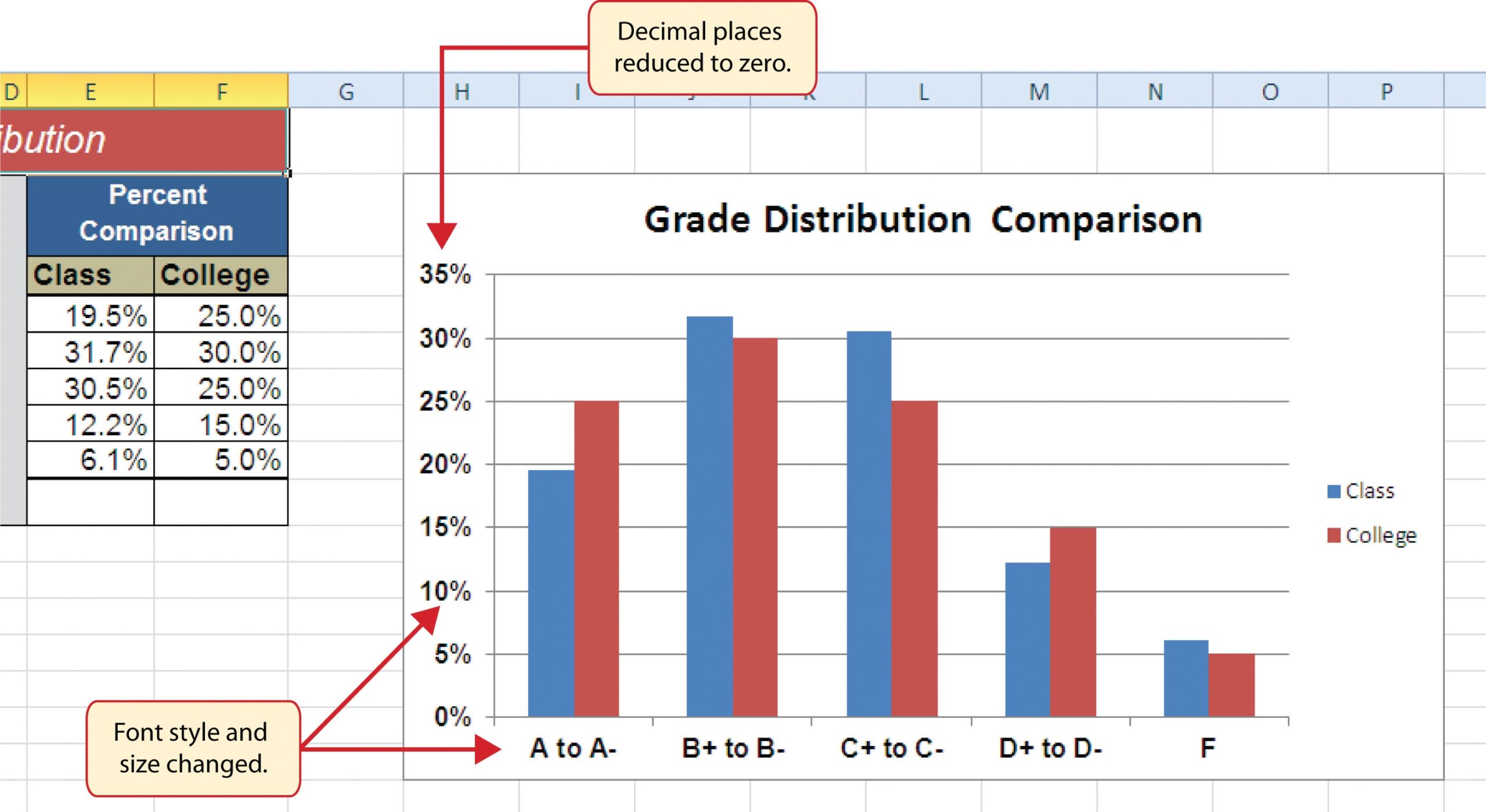
Presenting Data With Charts
Understanding the Basics of Excel Charts
To start creating your comparative chart, you first need to understand the basics of Excel charts. Excel offers a variety of chart types, including line charts, scatter plots, and bar charts, each suited to different types of data and analyses. For comparing distance and time, a scatter plot (also known as an XY chart) is often the most effective, as it allows you to see the relationship between these two variables. By selecting your data range and then choosing the appropriate chart type from Excel’s ‘Insert’ tab, you can quickly generate a basic chart that begins to reveal the story within your data.
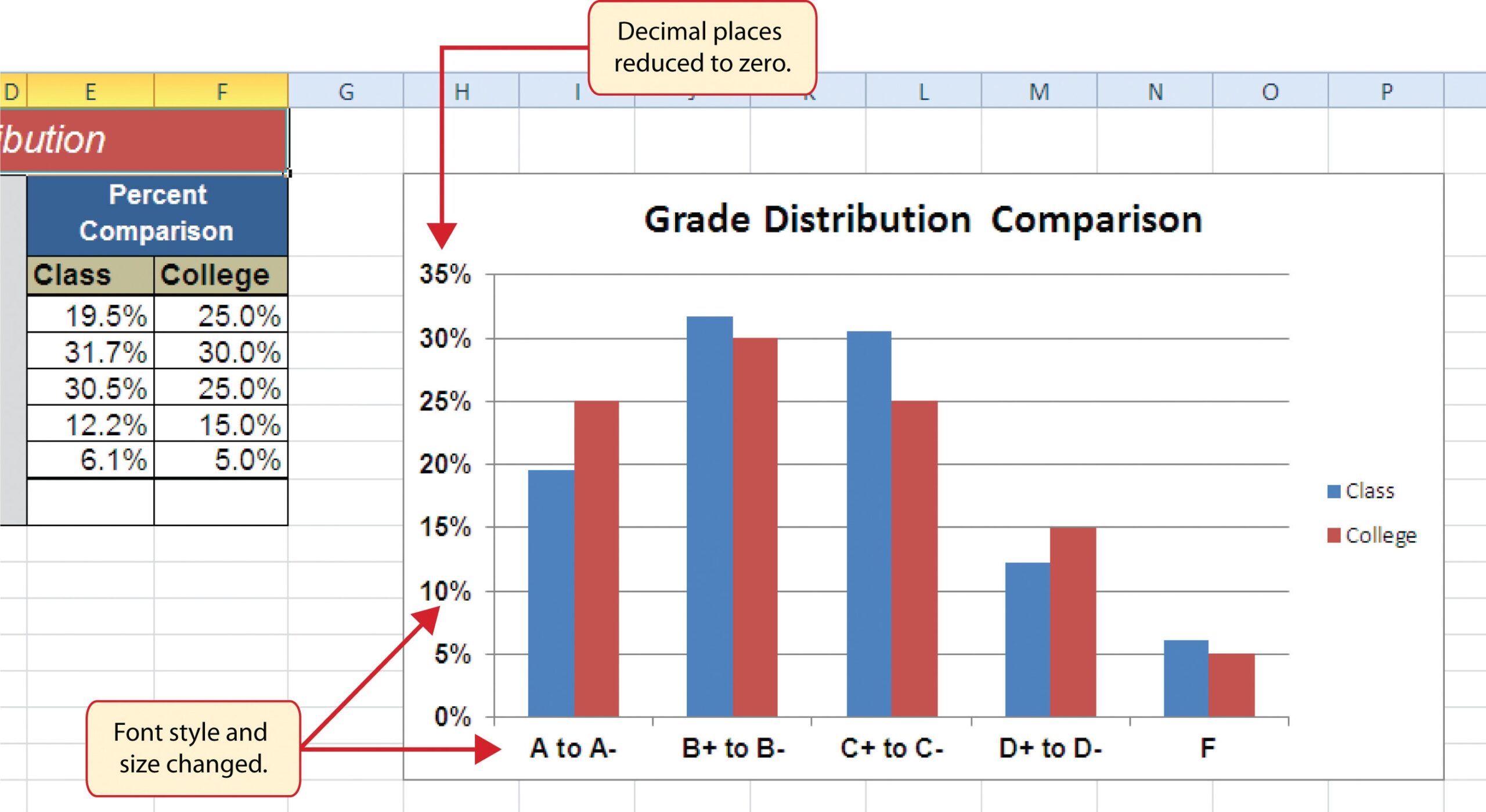
Presenting Data With Charts
Preparing Your Data for Comparative Analysis
Before you can create a meaningful chart, you need to prepare your data for comparative analysis. This involves not only ensuring that your distance and time data are in separate, adjacent columns but also considering any additional factors you might want to include in your analysis, such as different categories or groups. Excel’s filtering and sorting functions can be invaluable here, allowing you to focus on specific subsets of your data or to rearrange your data for clearer trends. Additionally, using Excel’s data validation tools can help prevent errors and inconsistencies in your dataset.
Customizing Your Chart for Clarity and Insight
Customizing your chart for clarity and insight is where you can really enhance the usefulness of your visualization. Excel provides a wide range of options for customizing charts, from changing colors and adding labels to inserting trendlines and adjusting axis scales. For a distance and time comparison chart, you might consider adding a trendline to help highlight the overall relationship between the variables, or using different colors to distinguish between different categories within your data. By thoughtfully customizing your chart’s appearance and features, you can make your data more accessible and engaging to your audience, whether that’s a team of colleagues, a class of students, or clients.
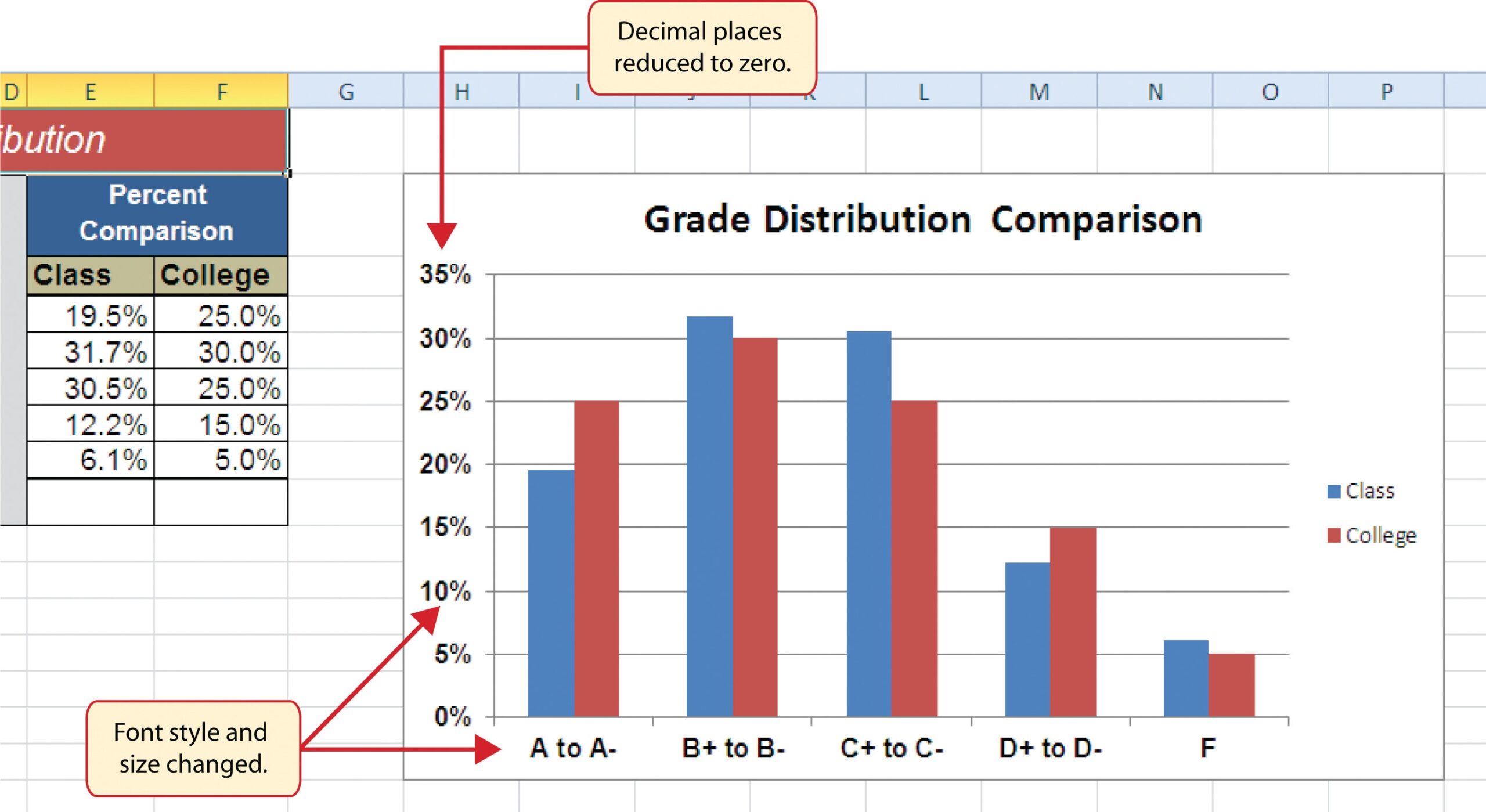
Presenting Data With Charts
As you finalize your chart, remember that the goal is to create a visualization that clearly communicates the relationship between distance and time in your dataset. By carefully preparing your data, selecting the right chart type, and customizing your chart’s appearance, you can create a powerful tool for analysis and decision-making. Whether you’re seeking to optimize routes, understand performance metrics, or simply explore the nuances of your data, a well-crafted chart in Excel can be an indispensable resource, offering insights that might remain hidden in a raw dataset.
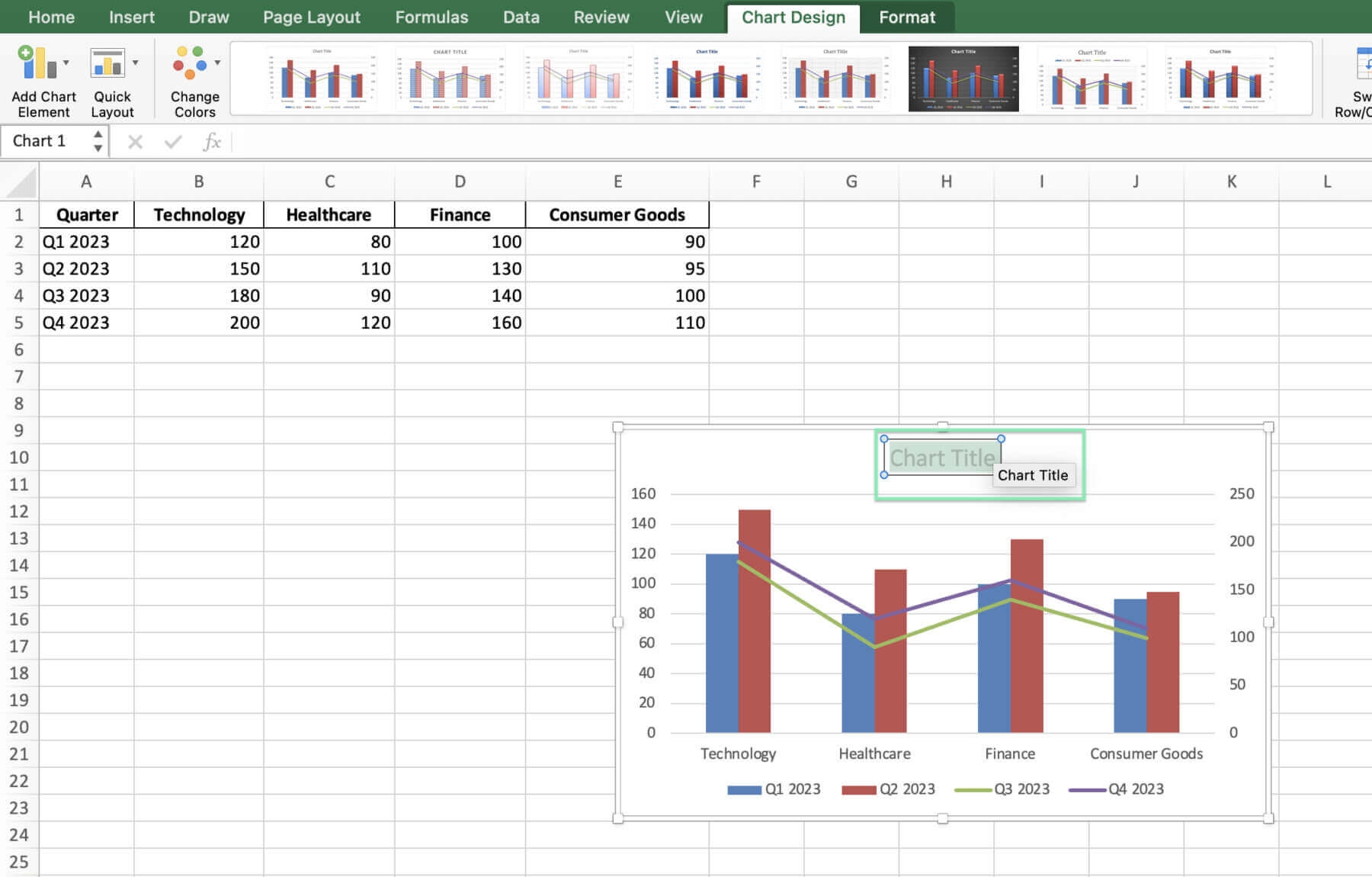
How To Create A Combo Chart In Excel Downloadable Template
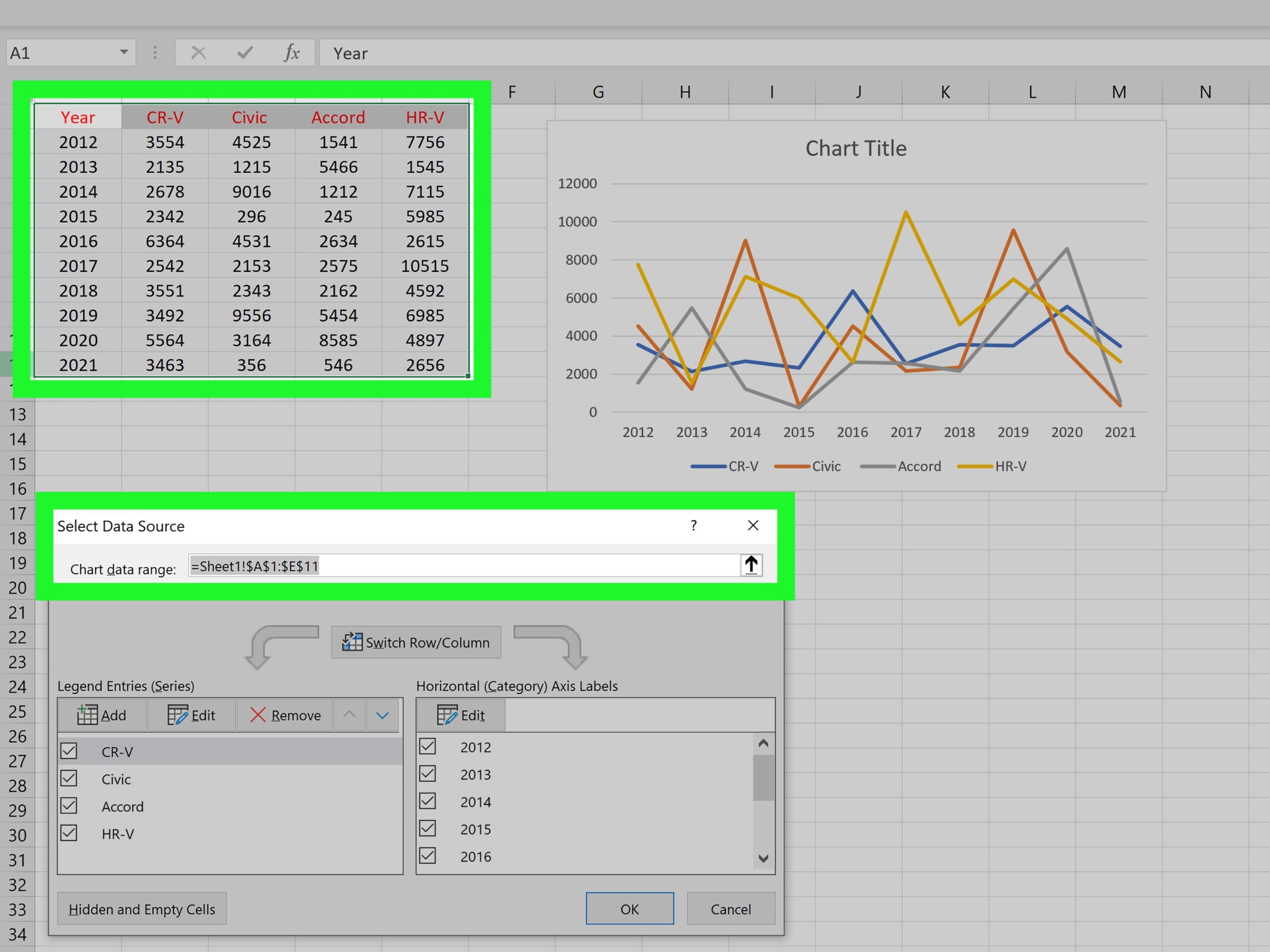
3 Easy Ways To Graph Multiple Lines In Excel WikiHow