When working with time-based data in Excel, selecting the right chart can be a daunting task. With so many options available, it’s easy to get overwhelmed and end up with a chart that doesn’t effectively communicate your data insights. Time-based data, by its very nature, involves tracking changes, trends, or patterns over time, making the choice of chart crucial for clear and concise communication.
The goal is to find a chart that not only displays your data accurately but also tells a story, highlighting key trends, peaks, and troughs in a way that’s easy for both you and your audience to understand. Whether you’re analyzing sales figures, website traffic, or production outputs, the right chart can make all the difference in how your data is perceived and acted upon.
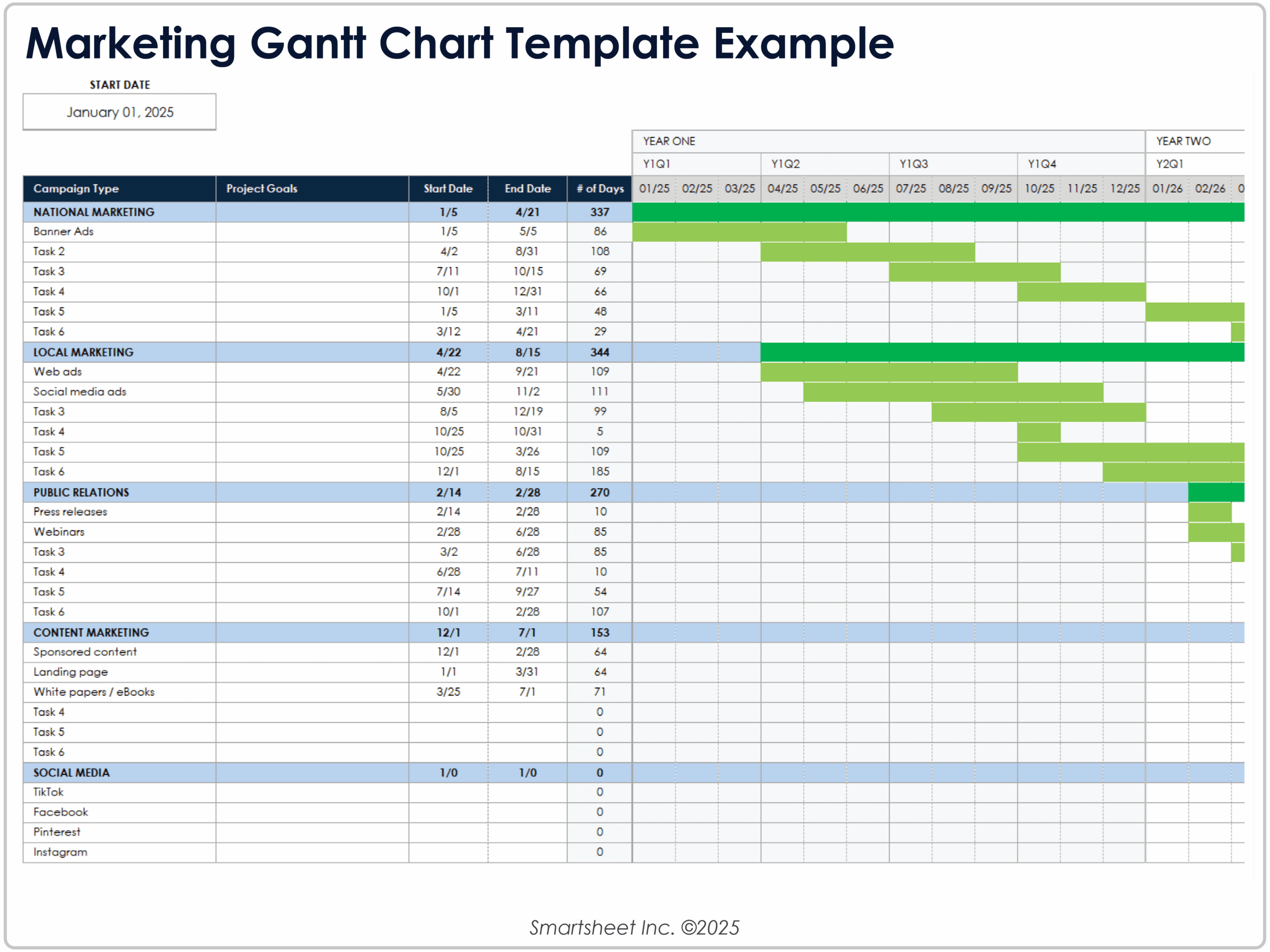
Free Excel Gantt Chart Templates
Understanding Time-Based Data
Understanding time-based data is fundamental to choosing the best chart in Excel. This type of data involves measurements or observations recorded at regular time intervals, such as daily, weekly, monthly, or annually. The essence of time-based data analysis is to identify how values change over time, which can include spotting seasonal fluctuations, trends, or one-off anomalies. Excel offers several chart types that are particularly suited to time-based data, including line charts, area charts, and stock charts, each with its unique strengths and applications.
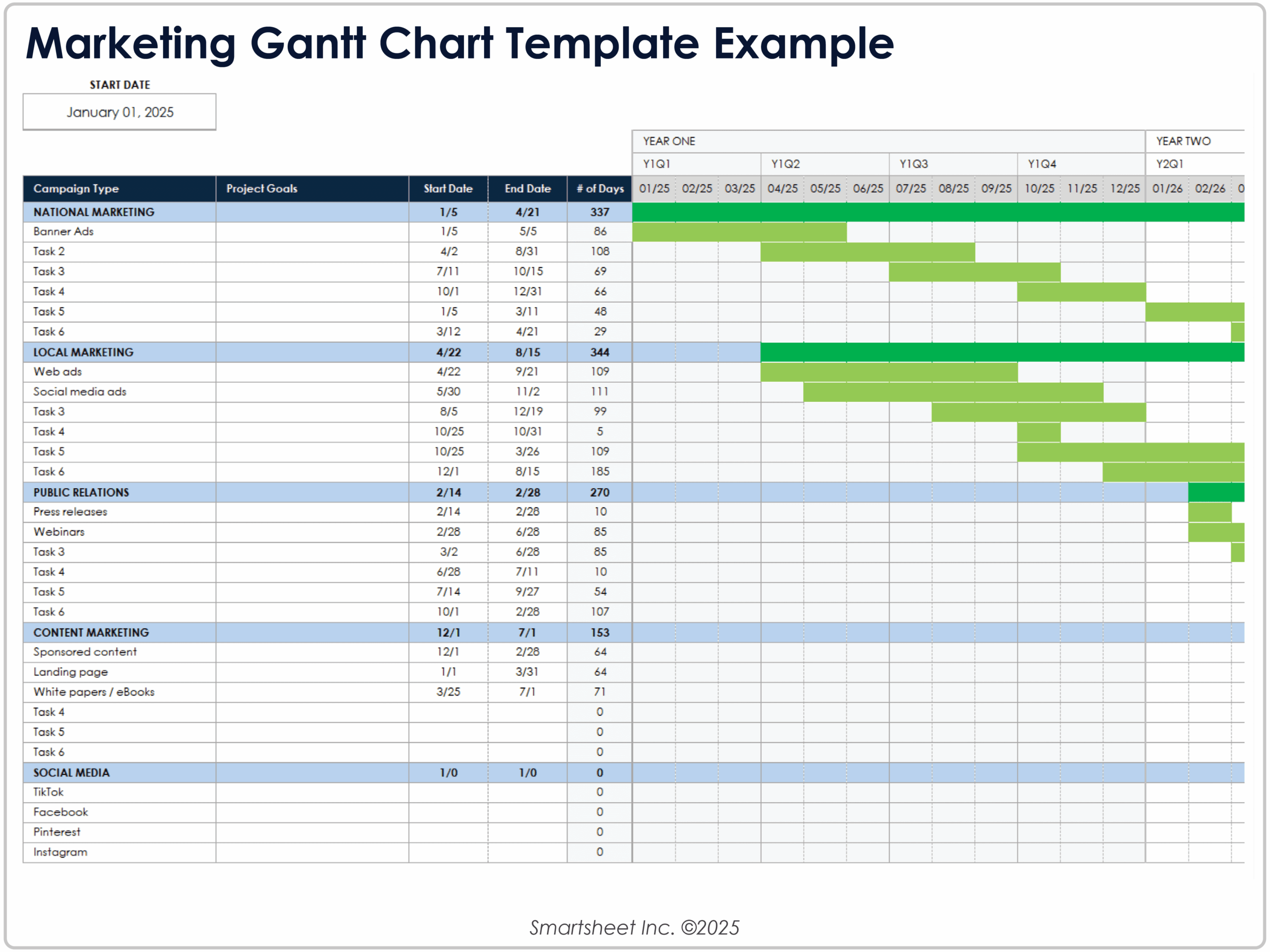
Free Excel Gantt Chart Templates
Choosing the Right Chart Type
Choosing the right chart type for your time-based data is critical. Line charts are excellent for showing trends over time and are particularly effective when you want to display data that has distinct trends or patterns. Area charts, on the other hand, are similar to line charts but fill the area below the line with a color, making them useful for emphasizing the magnitude of the trend. Stock charts are specialized for financial data, allowing for the easy visualization of high, low, open, and close values over time. The choice between these chart types depends on the nature of your data and the story you want to tell.
Customizing Your Chart for Maximum Impact
Customizing your chart for maximum impact involves more than just selecting the right type; it’s also about making aesthetic and functional adjustments. This can include adding titles and labels to provide context, adjusting colors to make your chart more engaging, and using Excel’s built-in tools to highlight specific data points or trends. Additionally, ensuring that your chart scales appropriately, especially on the time axis, can prevent data from being overly compressed or spread out, making it harder to interpret. By customizing your chart thoughtfully, you can turn what might otherwise be a dull presentation of numbers into a compelling narrative that resonates with your audience.
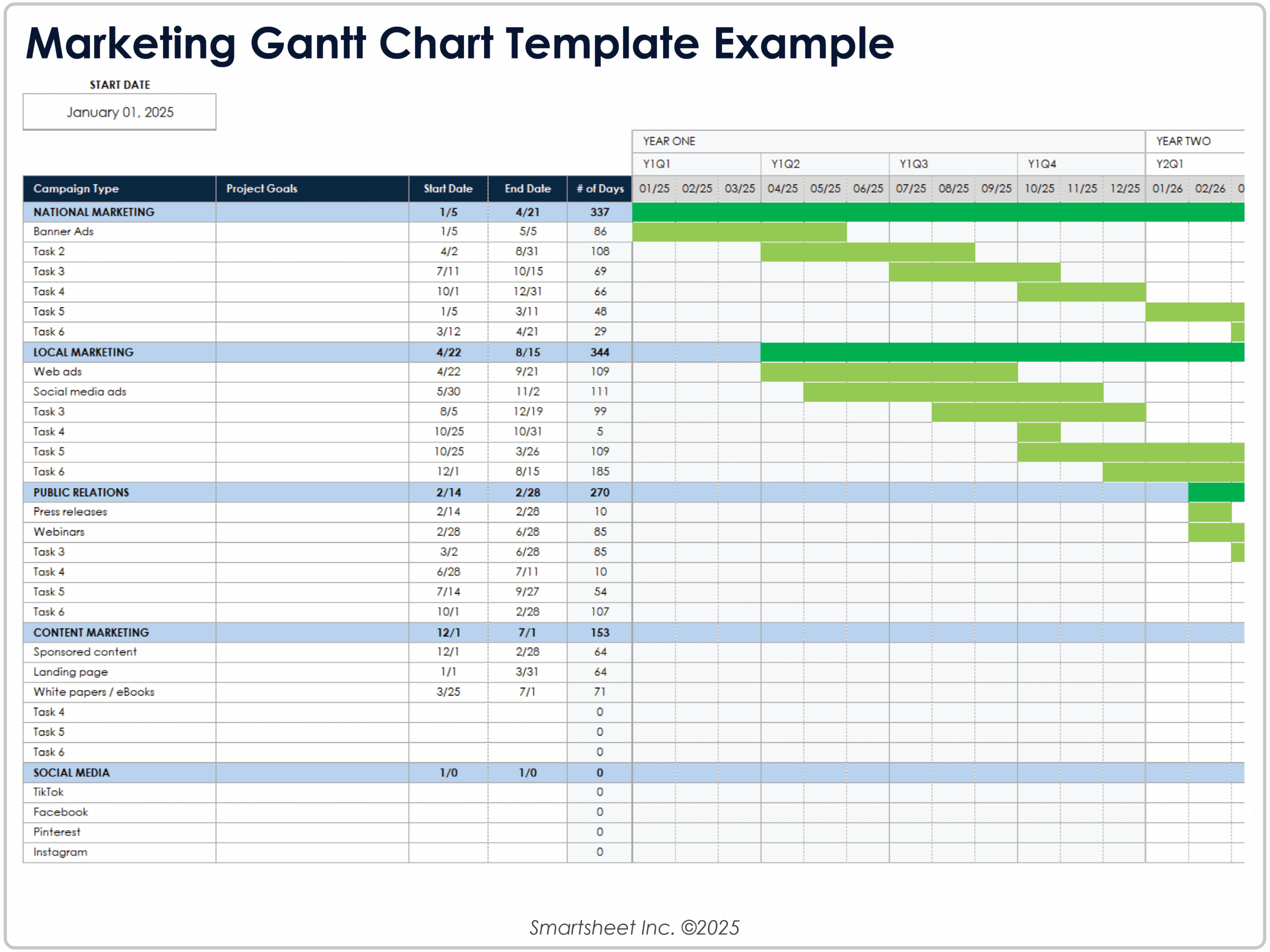
Free Excel Gantt Chart Templates
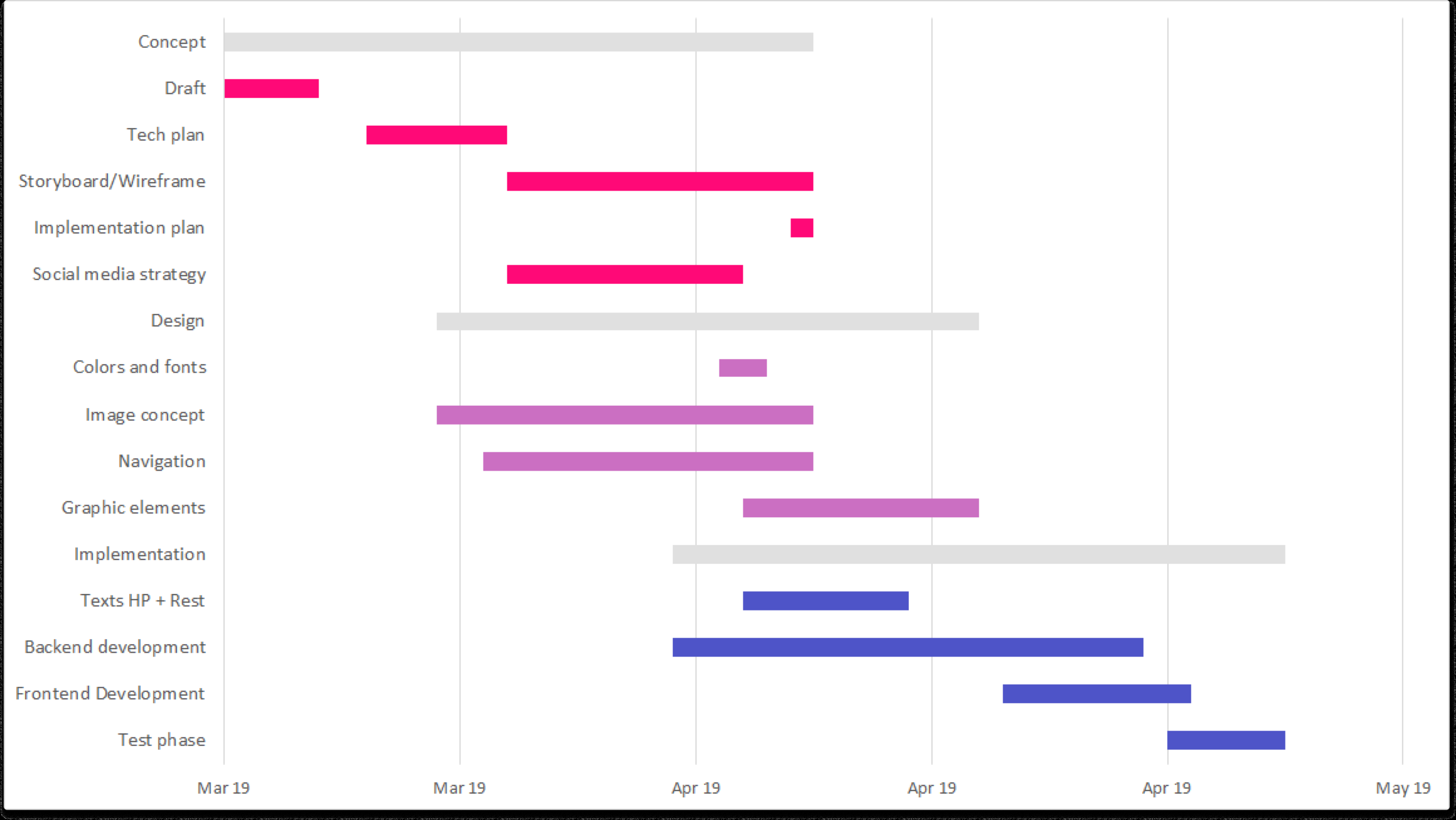
How To Make A Gantt Chart In Excel For Microsoft 365 Vizzlo
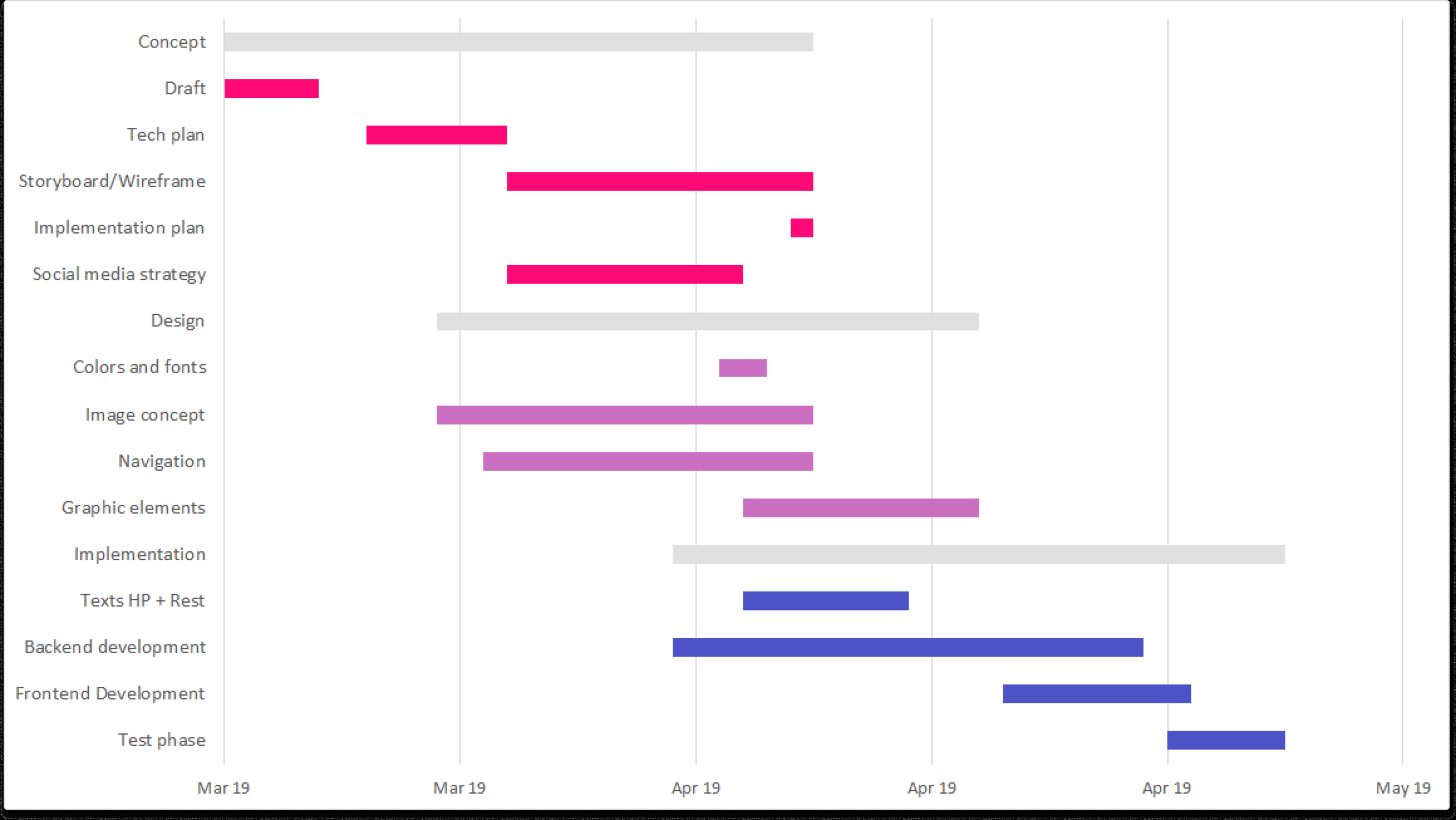
How To Make A Gantt Chart In Excel For Microsoft 365 Vizzlo