When working with data in Excel, it’s common to encounter time-based information, such as sales figures, website traffic, or sensor readings, that vary over time. Effectively visualizing and analyzing this data is crucial to gain insights and make informed decisions. One powerful tool in Excel for achieving this is the time-based data chart. By using a time-based data chart, you can easily illustrate trends, patterns, and fluctuations in your data over time, making it easier to understand and interpret.
Excel offers a range of chart types that can be used to display time-based data, including line charts, area charts, and scatter plots. Each chart type has its own strengths and weaknesses, and choosing the right one depends on the nature of your data and what you want to communicate. For example, a line chart is ideal for showing trends over time, while an area chart can be used to display cumulative totals. By selecting the appropriate chart type and customizing it to suit your needs, you can create a clear and compelling visualization of your time-based data.
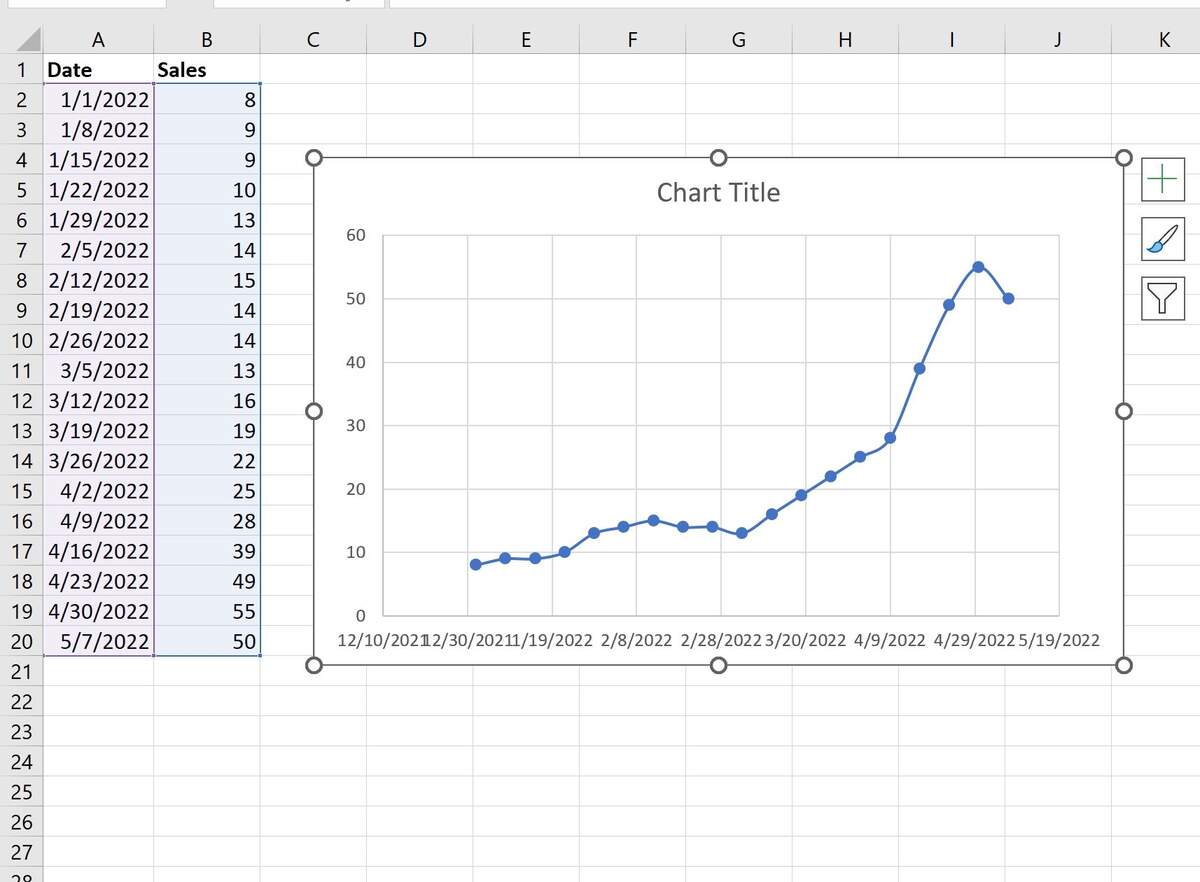
How To Plot A Time Series In Excel A Step By Step Guide
Understanding Time Based Data
To get started with creating a time-based data chart in Excel, you first need to understand the basics of how time-based data works. This involves organizing your data into a table with separate columns for the date or time and the corresponding values. Excel provides various functions, such as the DATE and TIME functions, to help you work with dates and times. Additionally, you can use the AutoFill feature to quickly fill a range of cells with a series of dates or times. By mastering these fundamentals, you’ll be well on your way to creating effective time-based data charts.
How To Plot A Time Series In Excel A Step By Step Guide
Creating a Time Based Data Chart
Creating a time-based data chart in Excel is a straightforward process that can be accomplished in a few steps. First, select the data range that you want to chart, including the headers. Then, go to the Insert tab and click on the type of chart you want to create. Excel will automatically generate a chart based on your data. You can then customize the chart by adding titles, labels, and legends, as well as adjusting the colors, fonts, and other visual elements. By following these steps and experimenting with different chart types and customization options, you can create a time-based data chart that effectively communicates your data insights.
Customizing Your Chart
Once you’ve created your time-based data chart, you can further customize it to enhance its appearance and clarity. One way to do this is by adding a trendline, which can help to highlight patterns or trends in your data. You can also use Excel’s built-in formatting tools to change the colors, fonts, and other visual elements of your chart. Additionally, you can add annotations, such as arrows or text boxes, to draw attention to specific points or trends in your data. By customizing your chart in these ways, you can make it more engaging and easier to understand, which can be especially useful when presenting your data to others.
How To Plot A Time Series In Excel A Step By Step Guide
In conclusion, Excel time-based data charts are a powerful tool for visualizing and analyzing data that varies over time. By understanding how to create and customize these charts, you can gain valuable insights into your data and communicate them effectively to others. Whether you’re working with sales data, website traffic, or sensor readings, Excel’s time-based data chart capabilities can help you to identify trends, patterns, and fluctuations, and make informed decisions based on your data. With practice and experience, you can become proficient in using Excel time-based data charts to drive business success and achieve your goals.
How To Plot A Time Series In Excel A Step By Step Guide
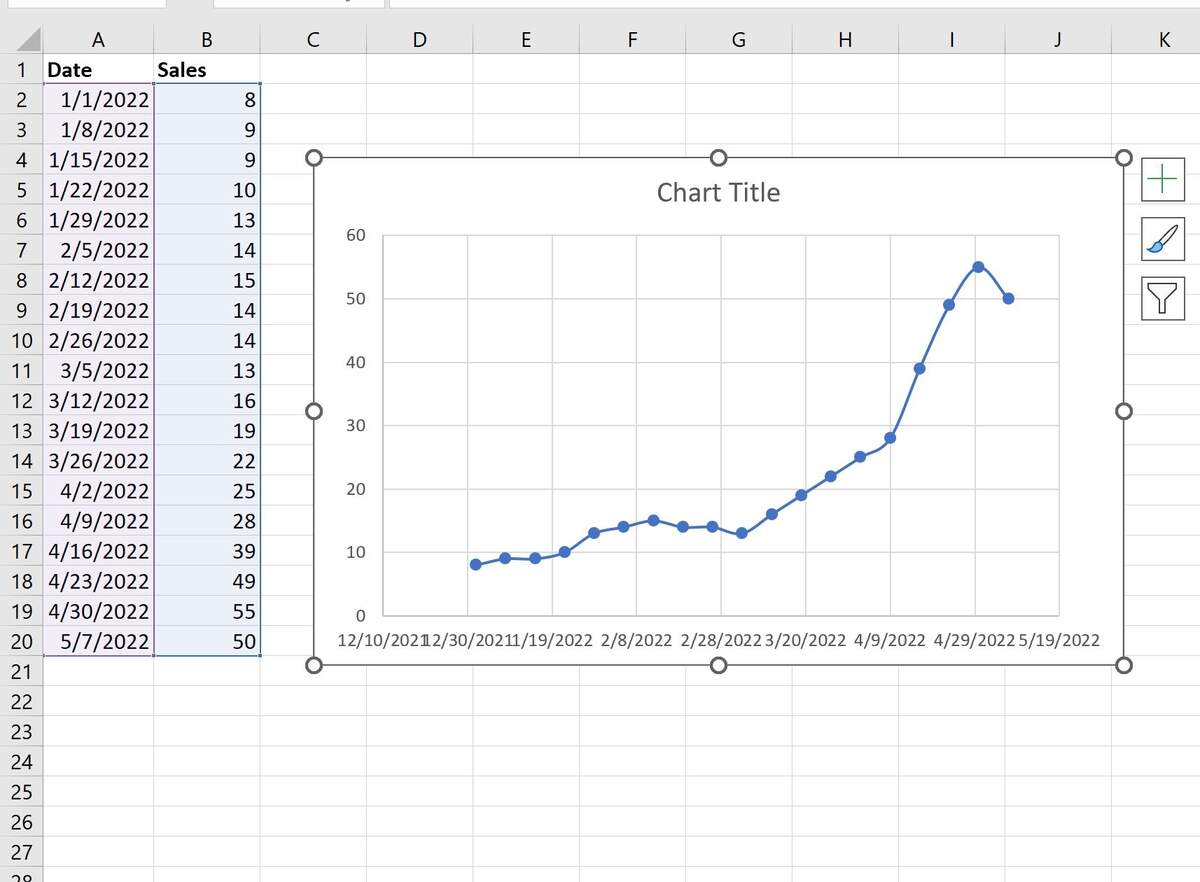
How To Plot A Time Series In Excel A Step By Step Guide