When working with time-based data in Excel, it’s essential to choose a chart type that effectively communicates trends and patterns. Time-based data can include anything from sales figures over a quarter to website traffic over a year. The right chart can help you identify seasonal fluctuations, growth rates, and other insights that might inform business decisions or strategy adjustments.
Excel offers a variety of chart types, each suited to different kinds of data and analysis needs. For time-based data, some charts are more effective than others. The goal is to select a chart that clearly shows how data points change over time, making it easier to analyze and draw conclusions from the data. Whether you’re tracking daily, monthly, or yearly data, the choice of chart can significantly impact the clarity and usefulness of your data visualization.
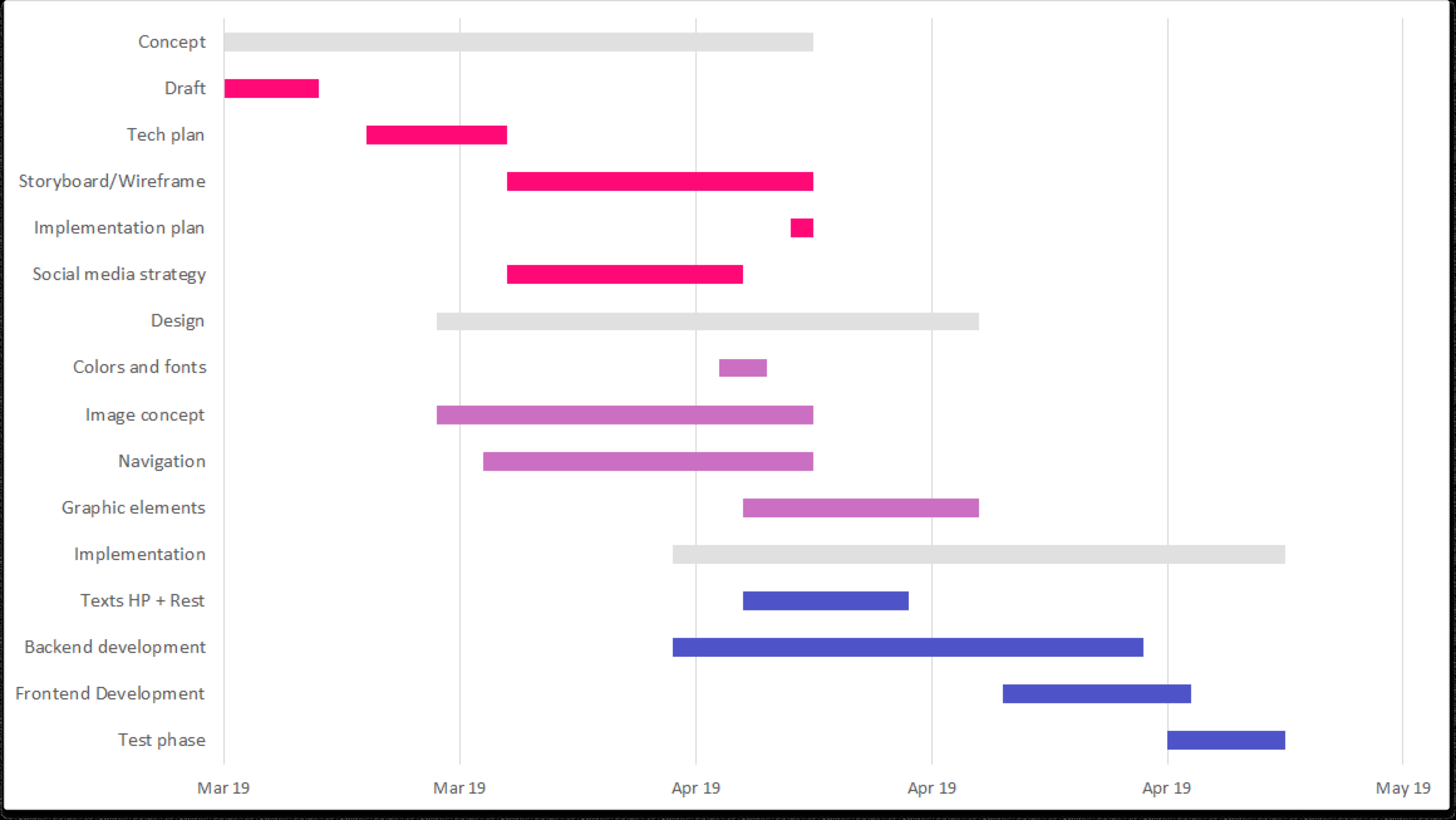
How To Make A Gantt Chart In Excel For Microsoft 365 Vizzlo
Understanding Time-Based Data
Understanding your time-based data is the first step in choosing the best Excel chart. This involves considering the frequency of your data (e.g., daily, weekly, monthly), the trends you’re looking to highlight, and the level of detail required. For instance, if you’re looking at daily website hits over a year, a line chart might be effective for showing overall trends, while a column chart could be better for comparing monthly totals. It’s also crucial to ensure your data is properly formatted, with date fields recognized as such by Excel, to enable the use of date-based grouping and filtering in your charts.
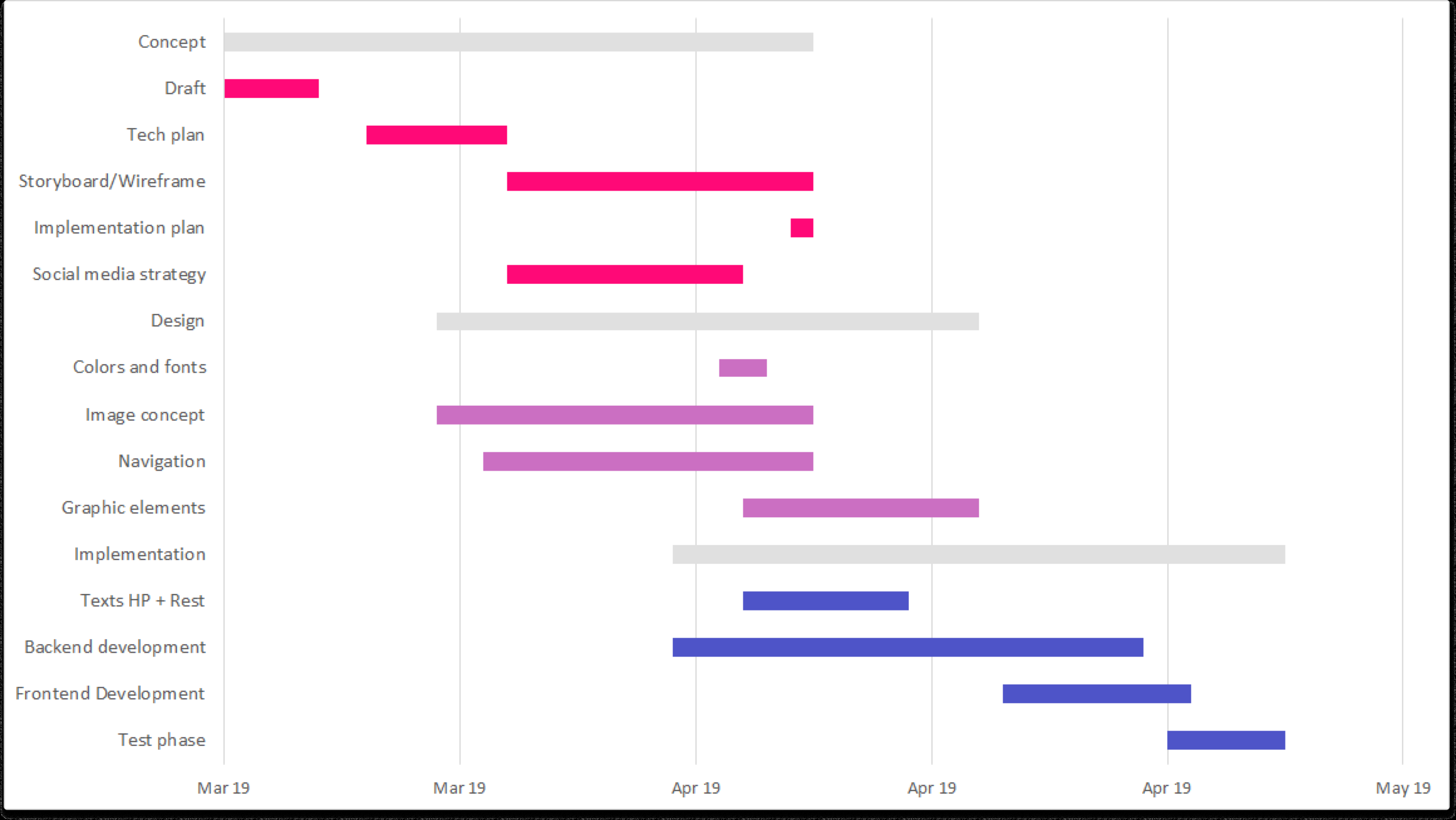
How To Make A Gantt Chart In Excel For Microsoft 365 Vizzlo
Choosing the Right Chart Type
Choosing the right chart type for your time-based data is critical. Excel’s line charts are particularly useful for showing trends over time, as they connect individual data points with lines, making it easy to see patterns and trends. Area charts can also be effective, especially for cumulative totals over time. Bar charts and column charts are better for comparing different time periods. For more complex data, such as showing multiple series over time, combination charts can offer a powerful visualization, allowing you to mix different chart types (like columns and lines) in a single chart to represent different data series.
Customizing Your Excel Chart
Customizing your Excel chart is where you can really make your data visualization shine. This involves adjusting colors, adding titles and labels, and potentially using Excel’s built-in tools for forecasting and trend analysis. For time-based data, it’s often useful to highlight specific periods or events directly on the chart, using annotations or by coloring specific data points differently. Excel also allows for the creation of dynamic charts that update automatically when new data is added, making it a powerful tool for ongoing monitoring and analysis of time-based data.
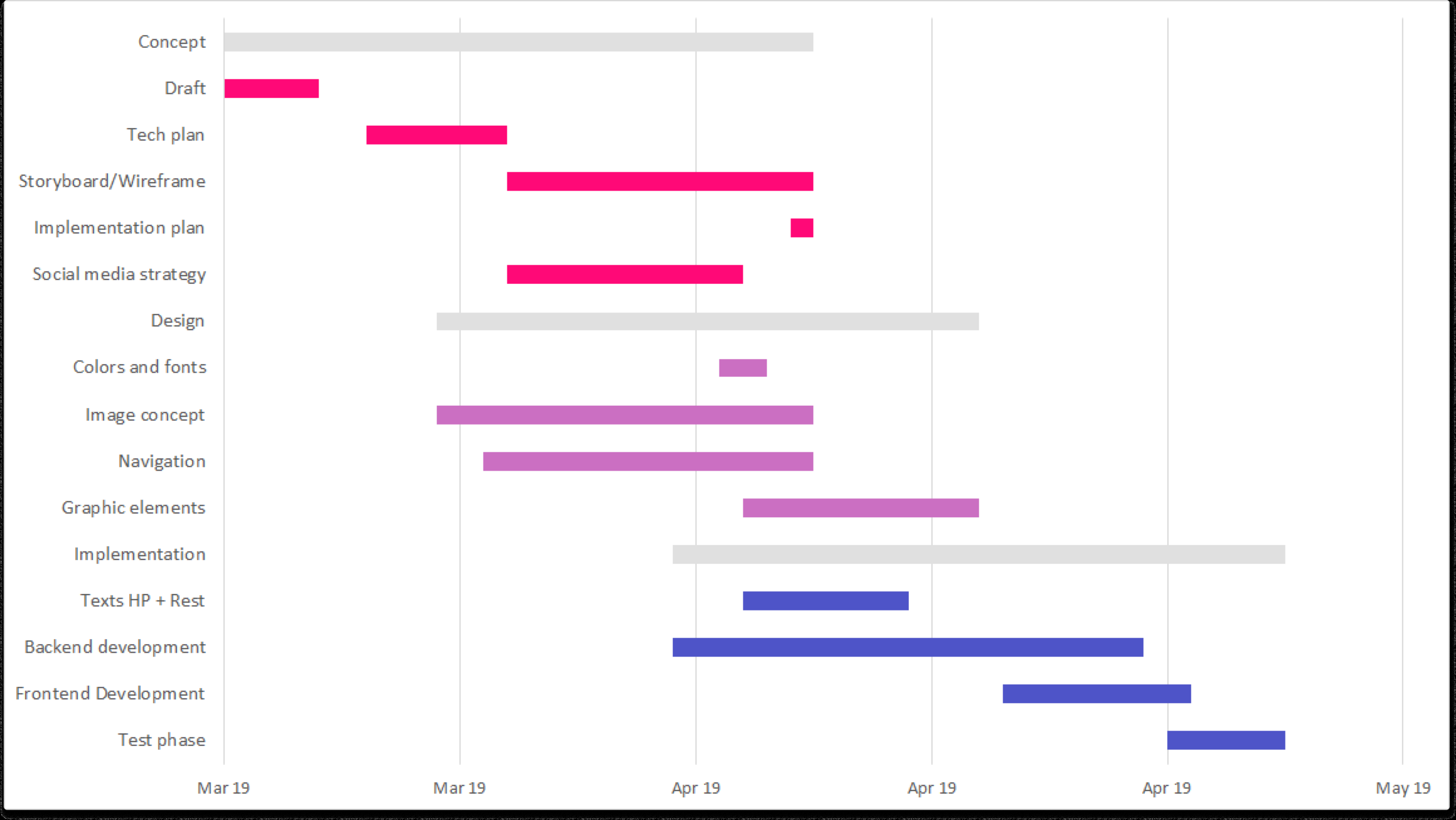
How To Make A Gantt Chart In Excel For Microsoft 365 Vizzlo
Ultimately, the best Excel chart for time-based data is one that clearly and effectively communicates the story within your data. By understanding your data, choosing the appropriate chart type, and customizing your chart to highlight key trends and insights, you can create compelling visualizations that enhance your analysis and presentation. Whether for personal projects, academic research, or business intelligence, mastering the art of time-based data visualization in Excel can significantly elevate your ability to extract value from your data and share findings with others.
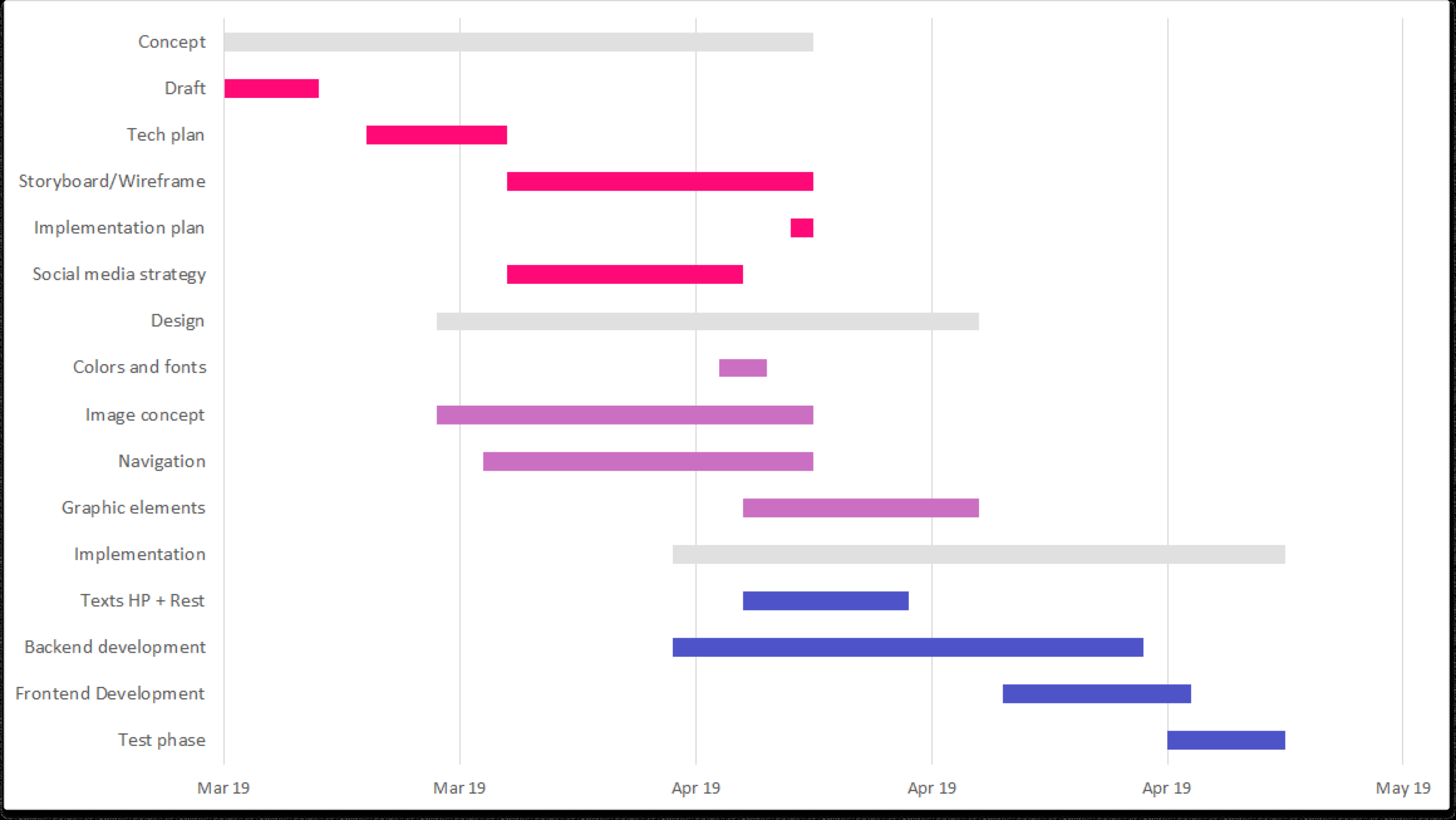
How To Make A Gantt Chart In Excel For Microsoft 365 Vizzlo
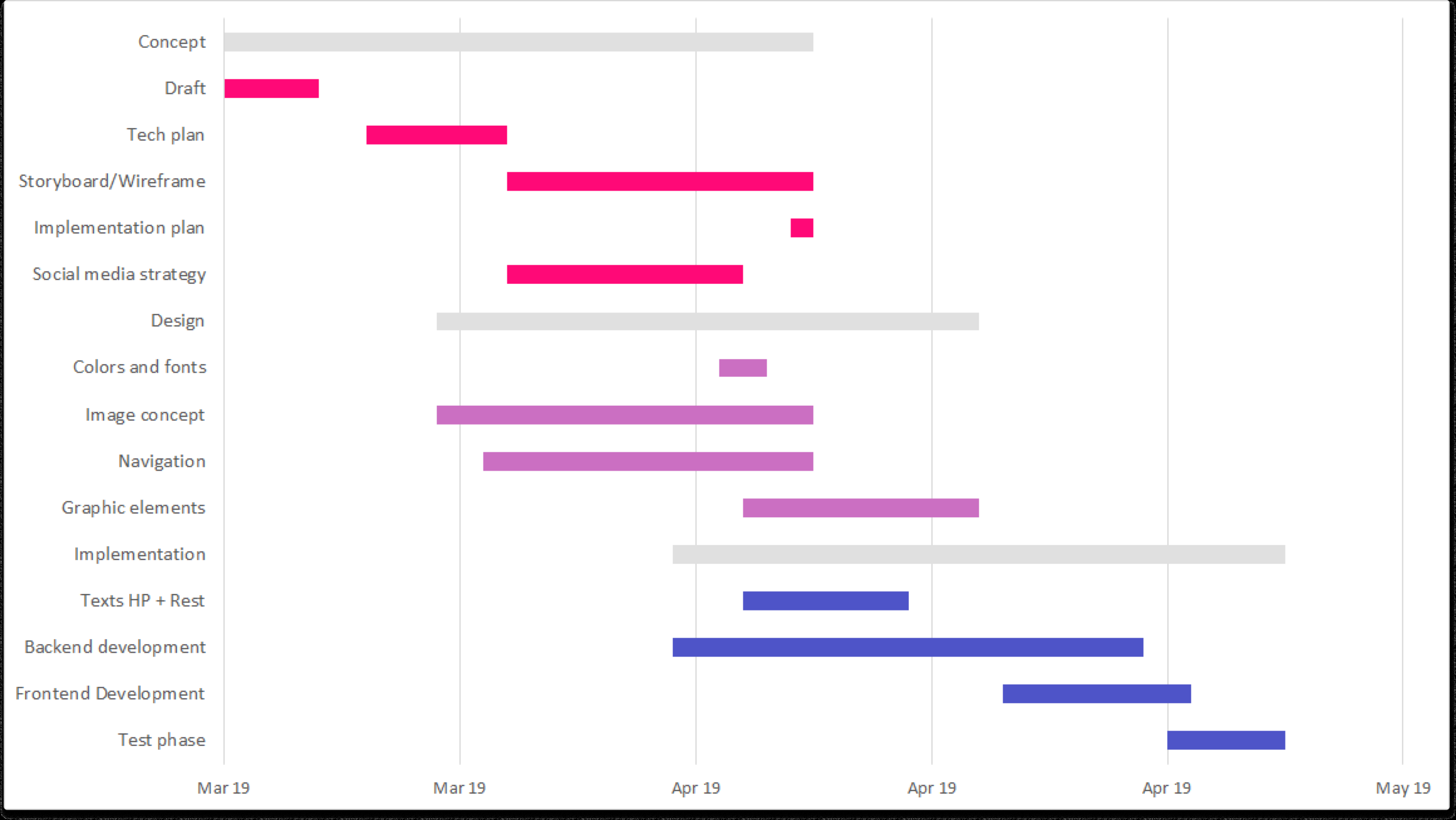
How To Make A Gantt Chart In Excel For Microsoft 365 Vizzlo