Time series charts are a powerful tool for analyzing and visualizing data that varies over time. They are commonly used in finance, economics, and other fields where trends and patterns need to be identified. With the release of Excel 2013, Microsoft introduced several new features and improvements that make it easier to create and customize time series charts. In this article, we will explore the world of time series charts in Excel 2013 and provide a step-by-step guide on how to create and customize them.
Excel 2013 provides a wide range of chart types, including line charts, area charts, and scatter charts, that can be used to create time series charts. The software also includes several built-in tools and features that make it easy to customize and analyze time series data. Whether you are a seasoned data analyst or just starting out, Excel 2013 has everything you need to create professional-looking time series charts. With its intuitive interface and powerful features, Excel 2013 is the perfect tool for anyone looking to visualize and analyze time series data.
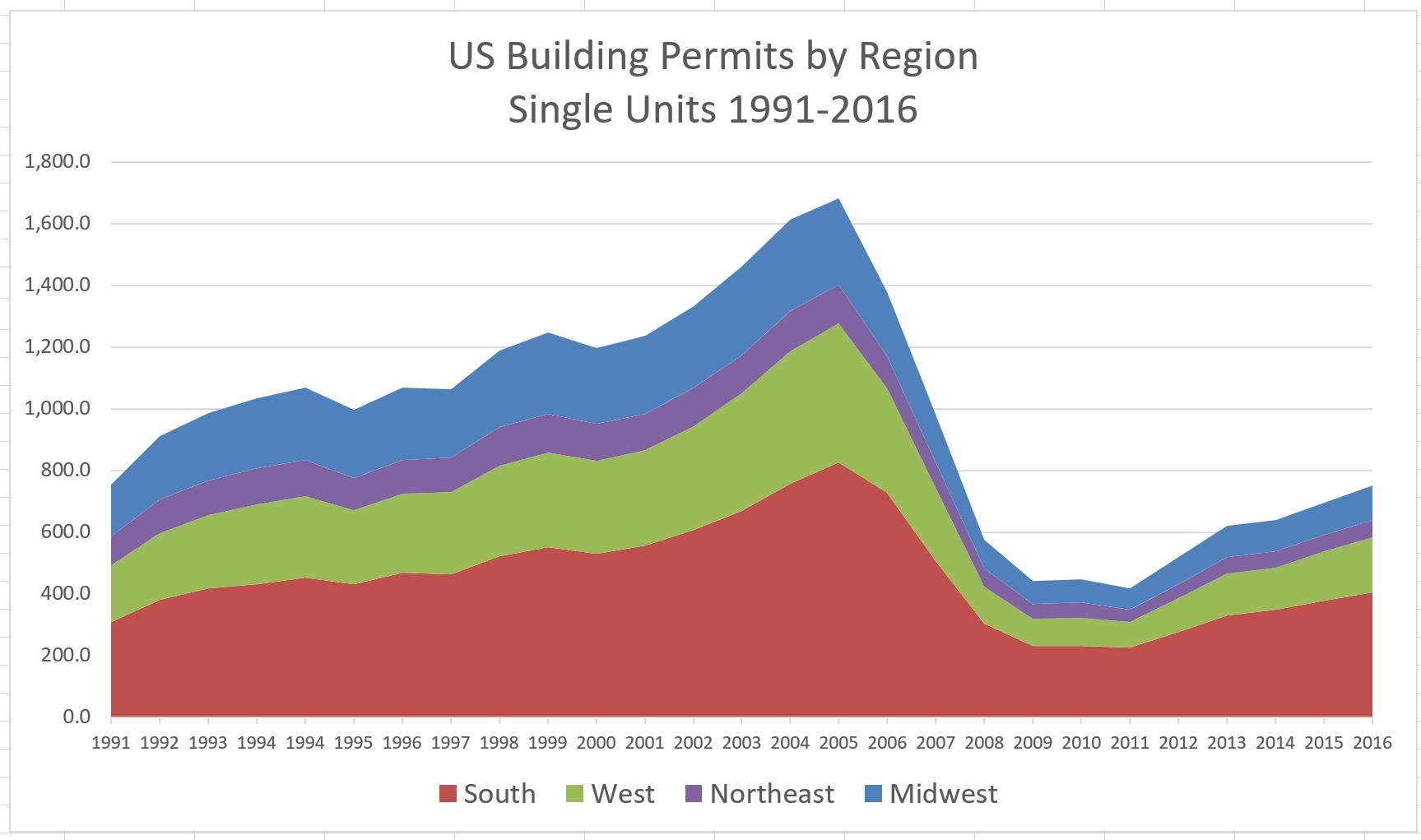
How To Make An Area Chart In Excel Updated 2025 Guide
What is a Time Series Chart?
A time series chart is a type of chart that displays data that varies over time. It is typically used to show trends and patterns in data, such as stock prices, temperature, or website traffic. Time series charts can be used to analyze and visualize data in a variety of fields, including finance, economics, and science. They are particularly useful for identifying seasonal trends, cycles, and other patterns that may not be immediately apparent from the data alone.

How To Make An Area Chart In Excel Updated 2025 Guide
Creating a Time Series Chart in Excel 2013
Creating a time series chart in Excel 2013 is a straightforward process. First, select the data you want to chart, including the date or time values and the corresponding data values. Then, go to the ‘Insert’ tab and click on the ‘Line’ or ‘Area’ chart button, depending on the type of chart you want to create. Excel will automatically create a time series chart based on your data. You can then customize the chart as needed, using the various tools and features available in the ‘Chart Tools’ tab.
Customizing Your Time Series Chart
Once you have created your time series chart, you can customize it to suit your needs. Excel 2013 provides a wide range of options for customizing time series charts, including changing the chart type, adding titles and labels, and modifying the axis settings. You can also use the ‘Trendline’ feature to add a trend line to your chart, which can help to highlight patterns and trends in the data. Additionally, you can use the ‘Data Labels’ feature to add labels to your data points, making it easier to read and understand the chart.
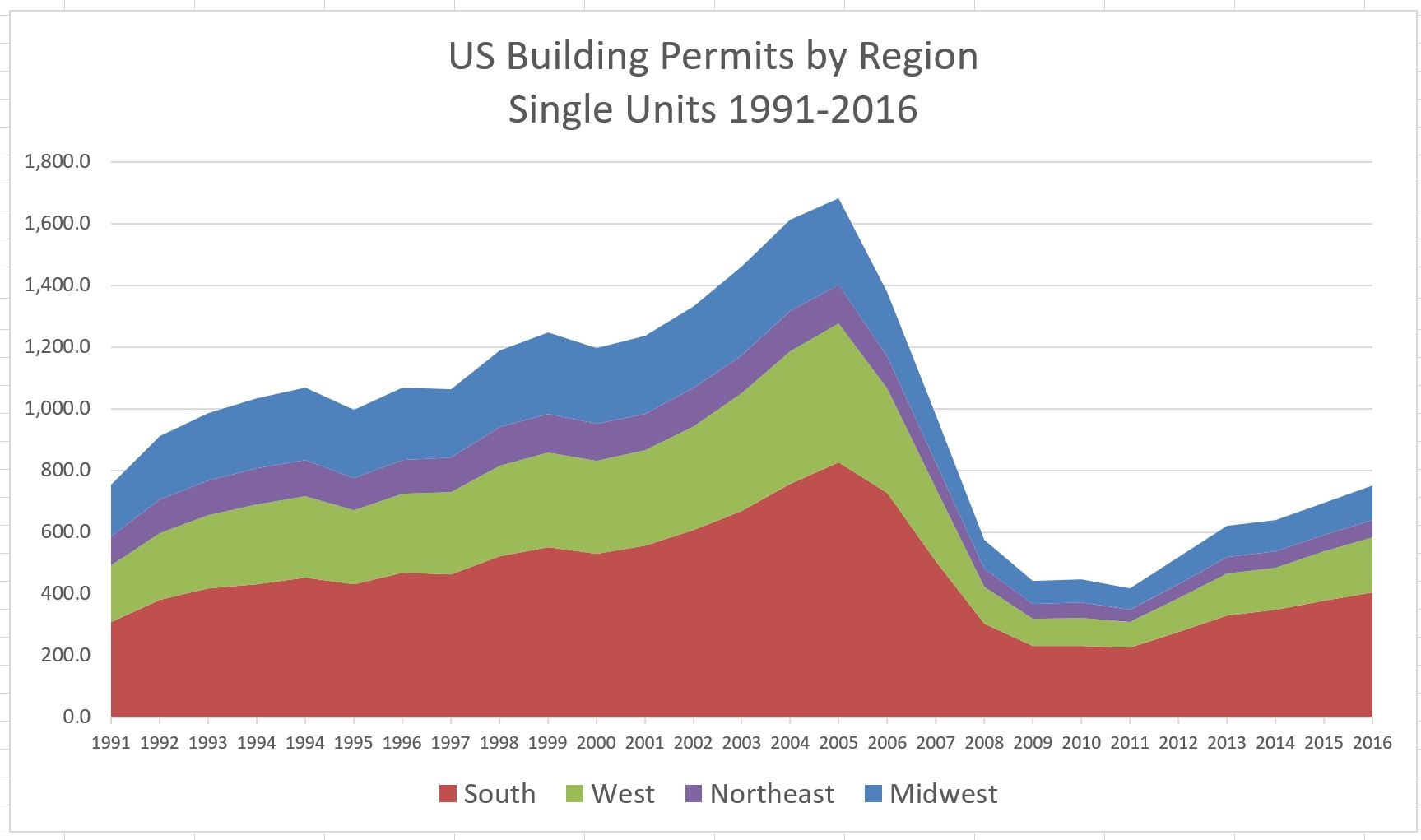
How To Make An Area Chart In Excel Updated 2025 Guide
In conclusion, time series charts are a powerful tool for analyzing and visualizing data that varies over time. With Excel 2013, creating and customizing time series charts is easier than ever. By following the steps outlined in this article, you can create professional-looking time series charts that help you to identify trends and patterns in your data. Whether you are a student, a business professional, or a scientist, Excel 2013 has everything you need to create and customize time series charts that meet your needs.
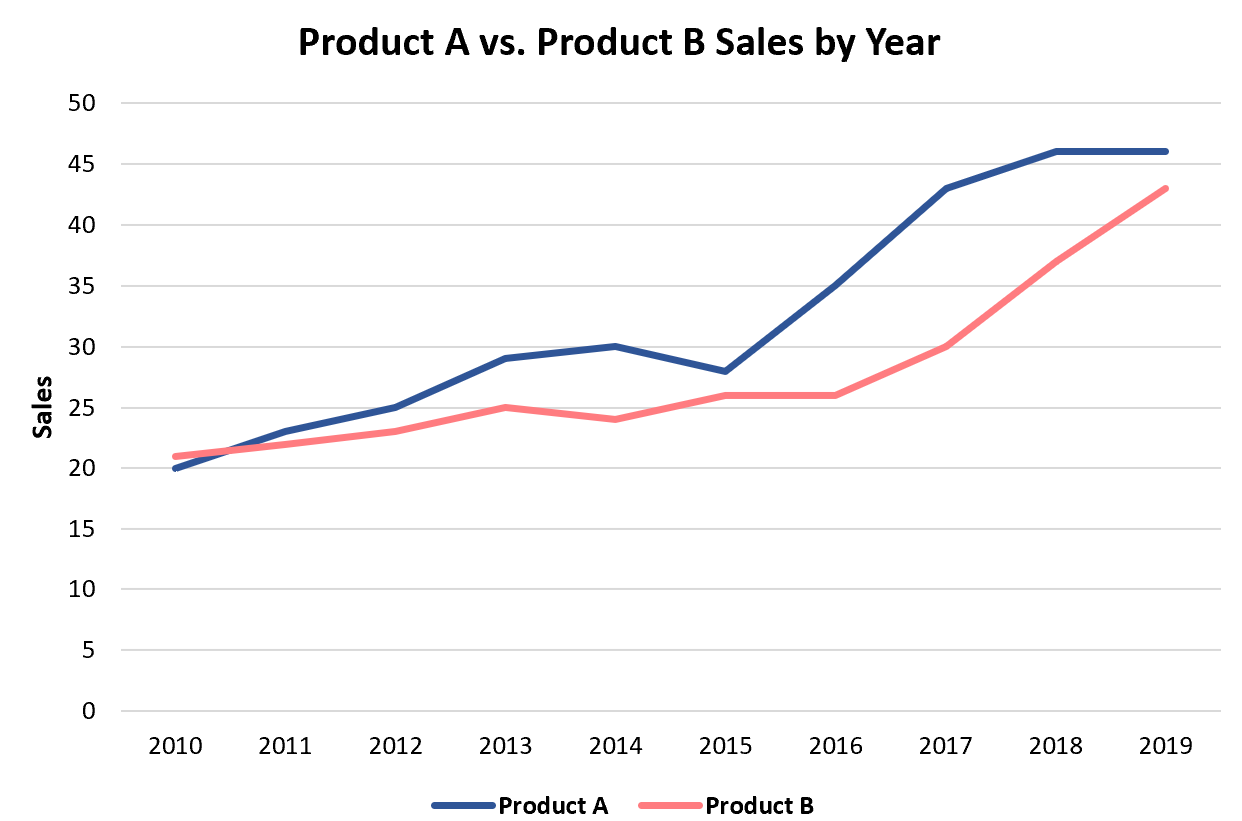
How To Create A Double Line Graph In Excel
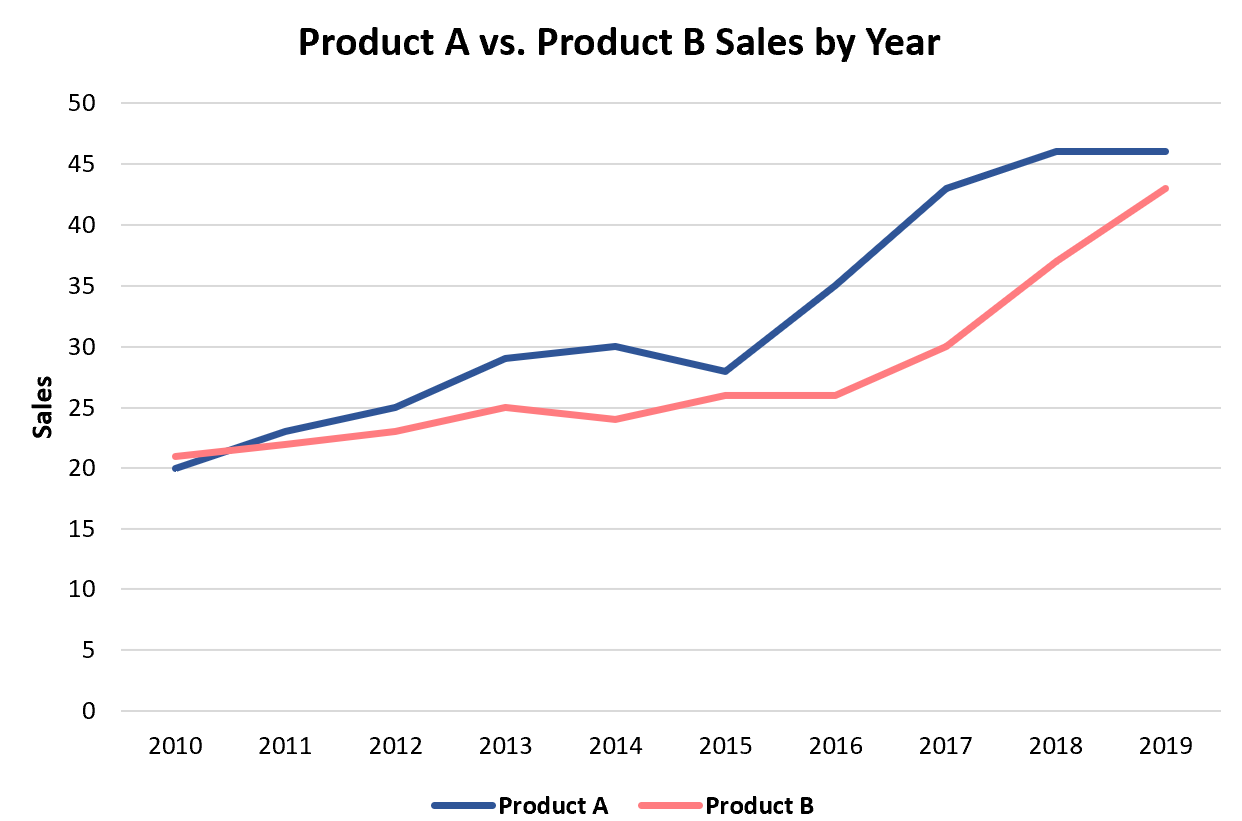
How To Create A Double Line Graph In Excel