When working with data that spans over time, it’s common to encounter situations where the intervals between data points are not uniform. This can pose a challenge when trying to create a line chart in Excel, as the default settings assume evenly spaced data points. However, there are ways to adapt your line chart to accommodate uneven time points, allowing for a more accurate representation of your data.
Excel line charts are powerful tools for visualizing trends and patterns in data over time. They are particularly useful for showing how values change at regular intervals, such as monthly sales figures or daily temperatures. But what happens when your data points don’t fall neatly into equal intervals? This is where knowing how to handle uneven time points in Excel line charts becomes essential, enabling you to present your data in a clear and meaningful way, even when the time intervals are irregular.
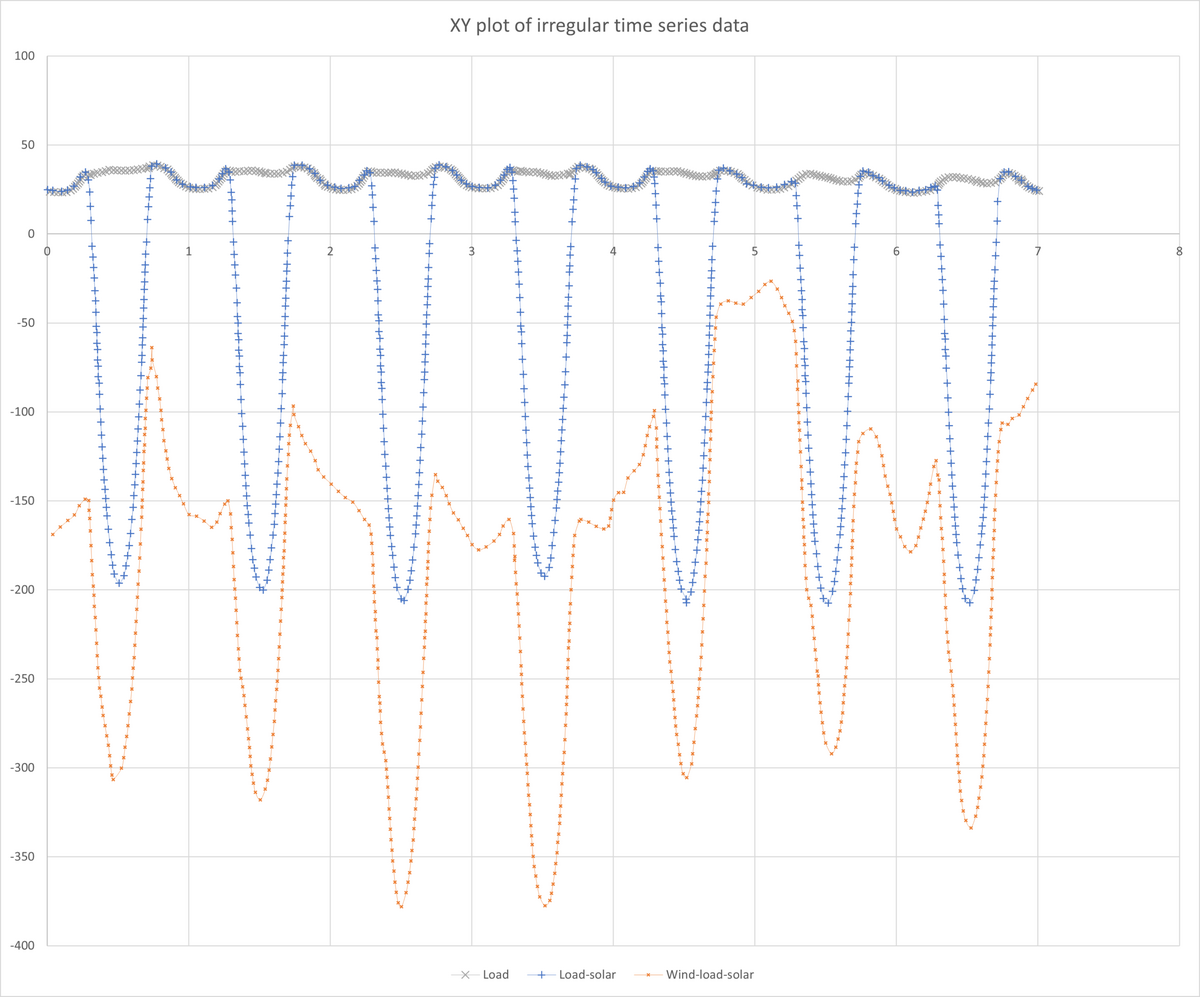
Converting Irregularly Time Stamped Measurements Into Equally Spaced Time Series In Excel Stack Overflow
Understanding the Challenge of Uneven Time Points
The first step in creating a line chart that can handle uneven time points is understanding the nature of your data. This involves recognizing the dates or time points associated with each data value. Excel can interpret dates and times, allowing it to space out the data points accordingly on the x-axis. However, for this to work correctly, your data must be properly formatted as dates or times. This might involve converting text representations of dates into a format that Excel recognizes as a date, which can be done using the ‘Text to Columns’ feature or formulas like DATEVALUE.
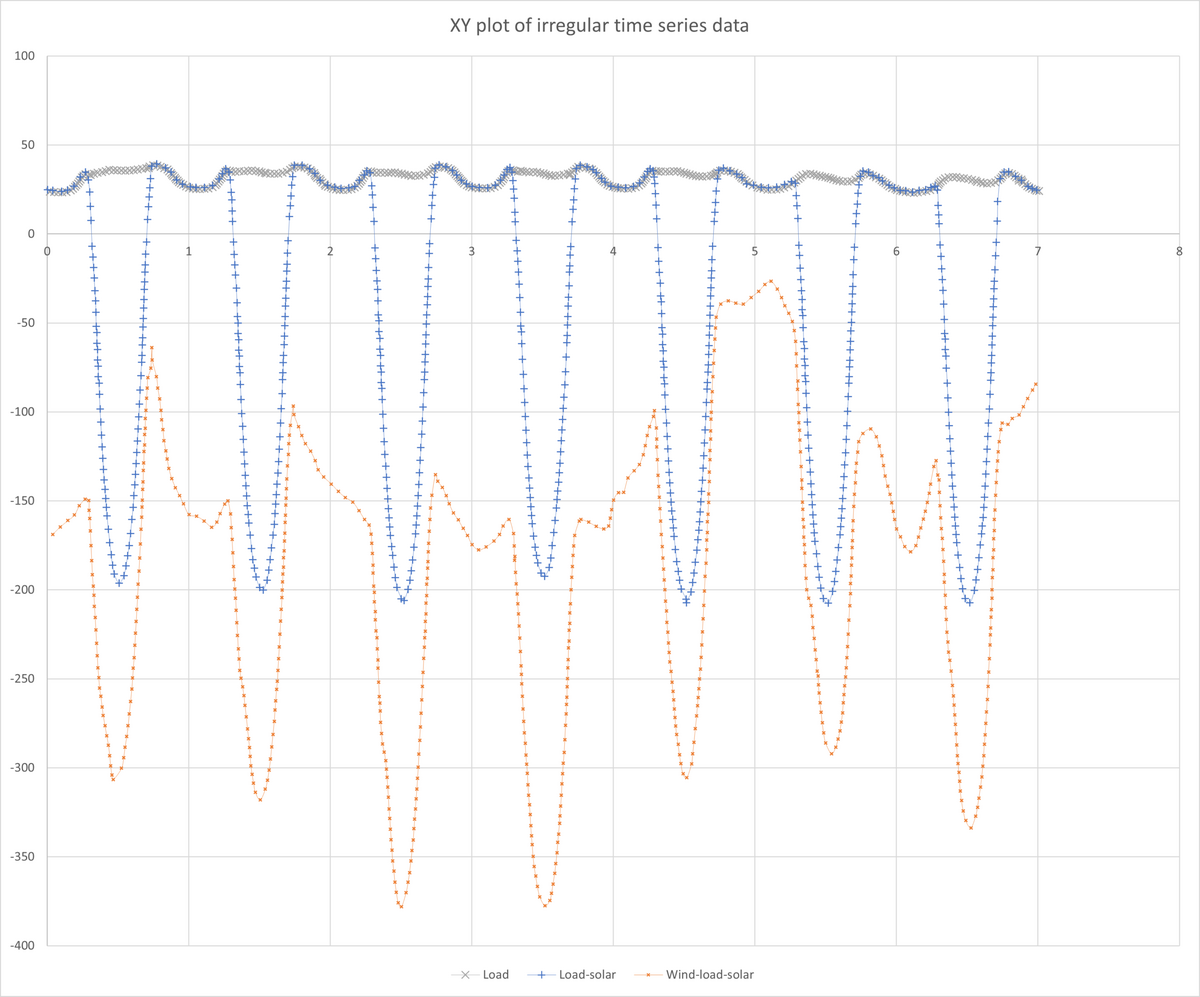
Converting Irregularly Time Stamped Measurements Into Equally Spaced Time Series In Excel Stack Overflow
Preparing Your Data for Uneven Time Points
Once your data is correctly formatted, you can proceed to prepare it for charting. This might involve arranging your data into two columns: one for the dates or time points and another for the corresponding values. Having your data organized in this manner makes it easier to create and customize your line chart. Additionally, ensuring that your data range includes headers can help Excel to automatically identify and label the axes of your chart, streamlining the process of creating a meaningful and well-formatted line chart.
Customizing Your Line Chart for Uneven Time Points
Customizing your line chart to display uneven time points involves a few key steps. After selecting your data range and inserting a line chart, you may need to adjust the x-axis to ensure that it accurately represents the uneven intervals between your data points. This can often be achieved by right-clicking on the x-axis, selecting ‘Format Axis’, and then adjusting the axis options to reflect your data’s specific needs. For instance, you might choose to have the axis display dates at irregular intervals, matching the uneven time points in your dataset. Additionally, using the ‘Select Data’ option when you right-click on the chart can help you to specify the exact data range and how the axes should be treated, further refining your chart to accurately depict uneven time points.
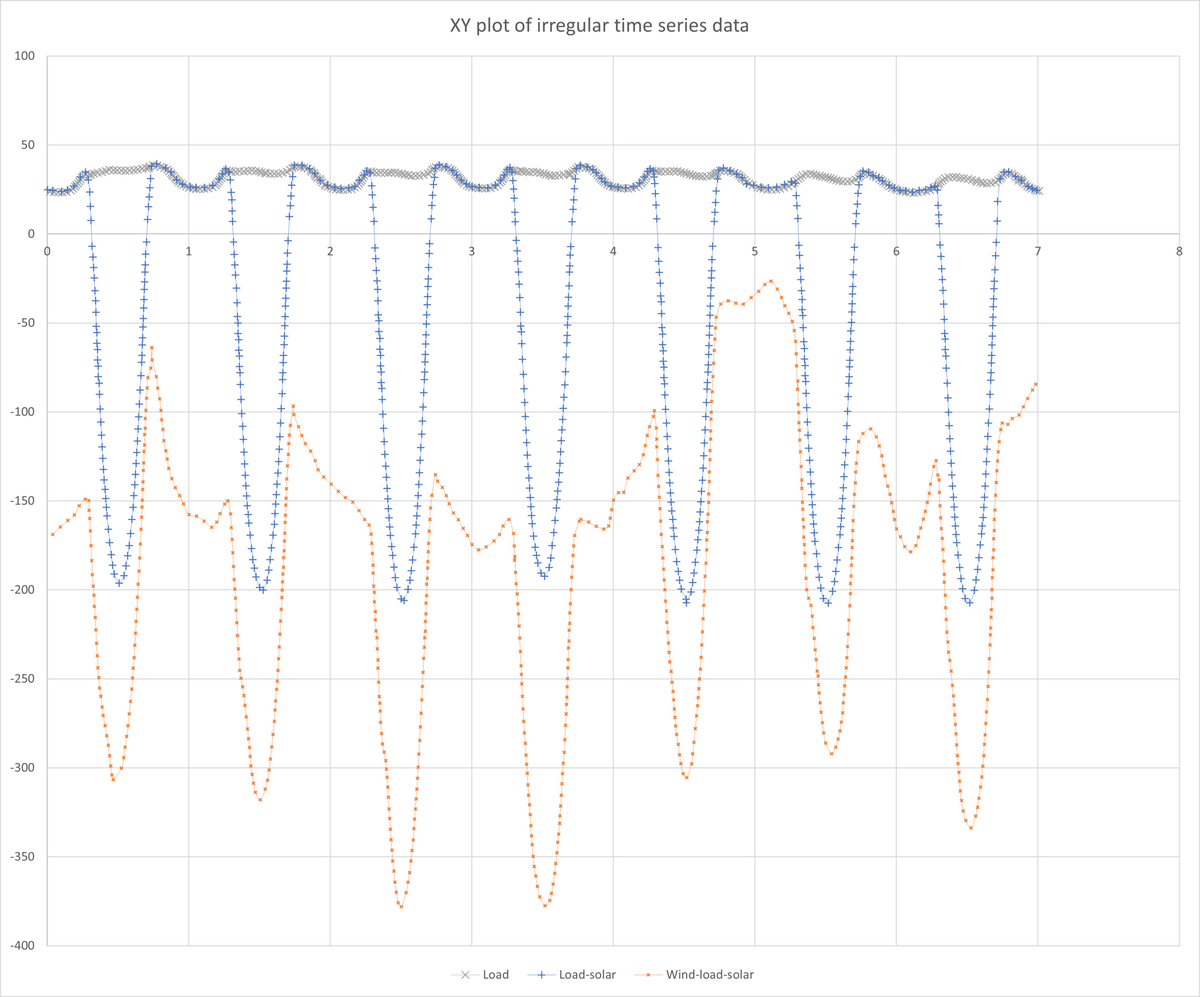
Converting Irregularly Time Stamped Measurements Into Equally Spaced Time Series In Excel Stack Overflow
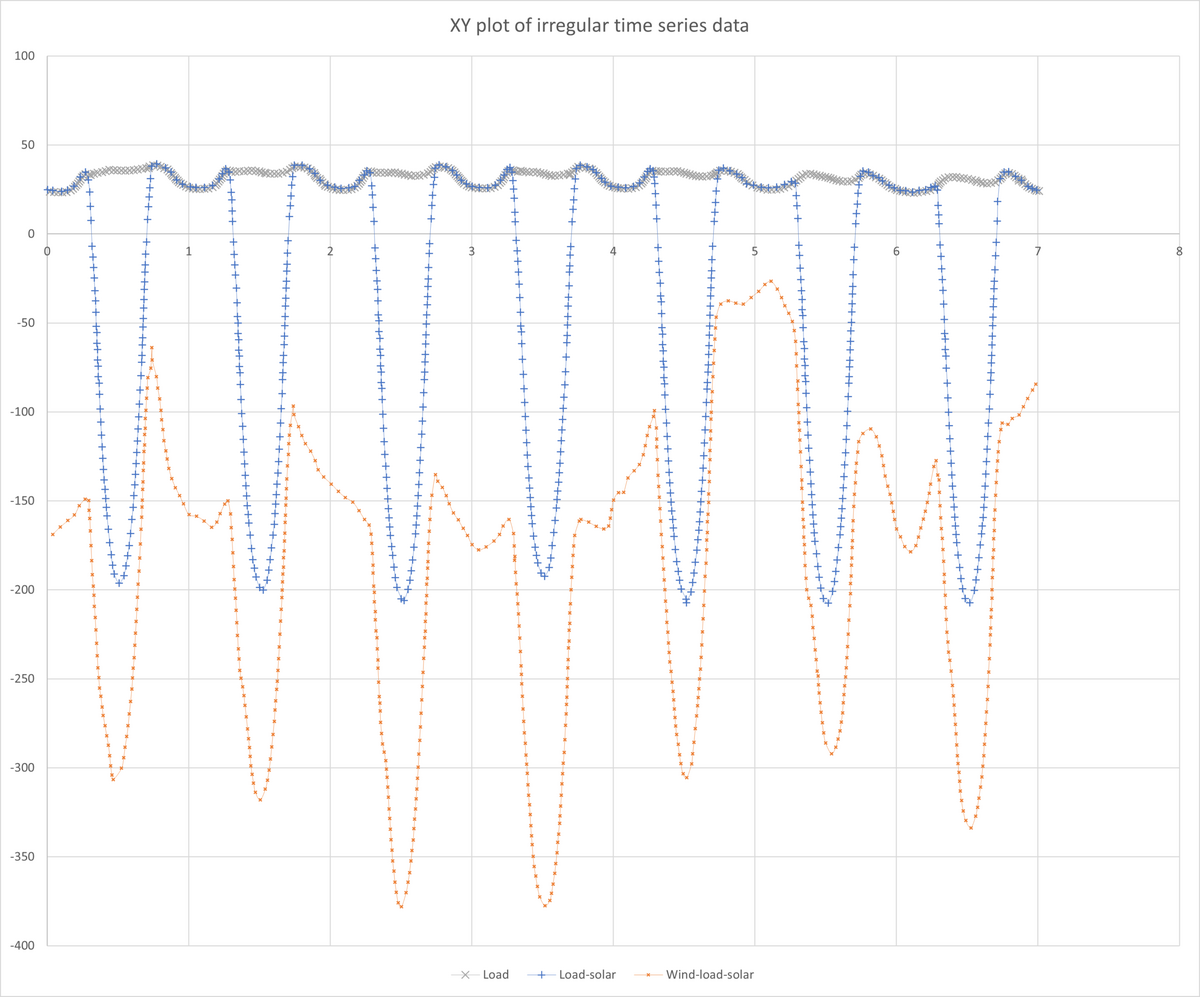
Converting Irregularly Time Stamped Measurements Into Equally Spaced Time Series In Excel Stack Overflow
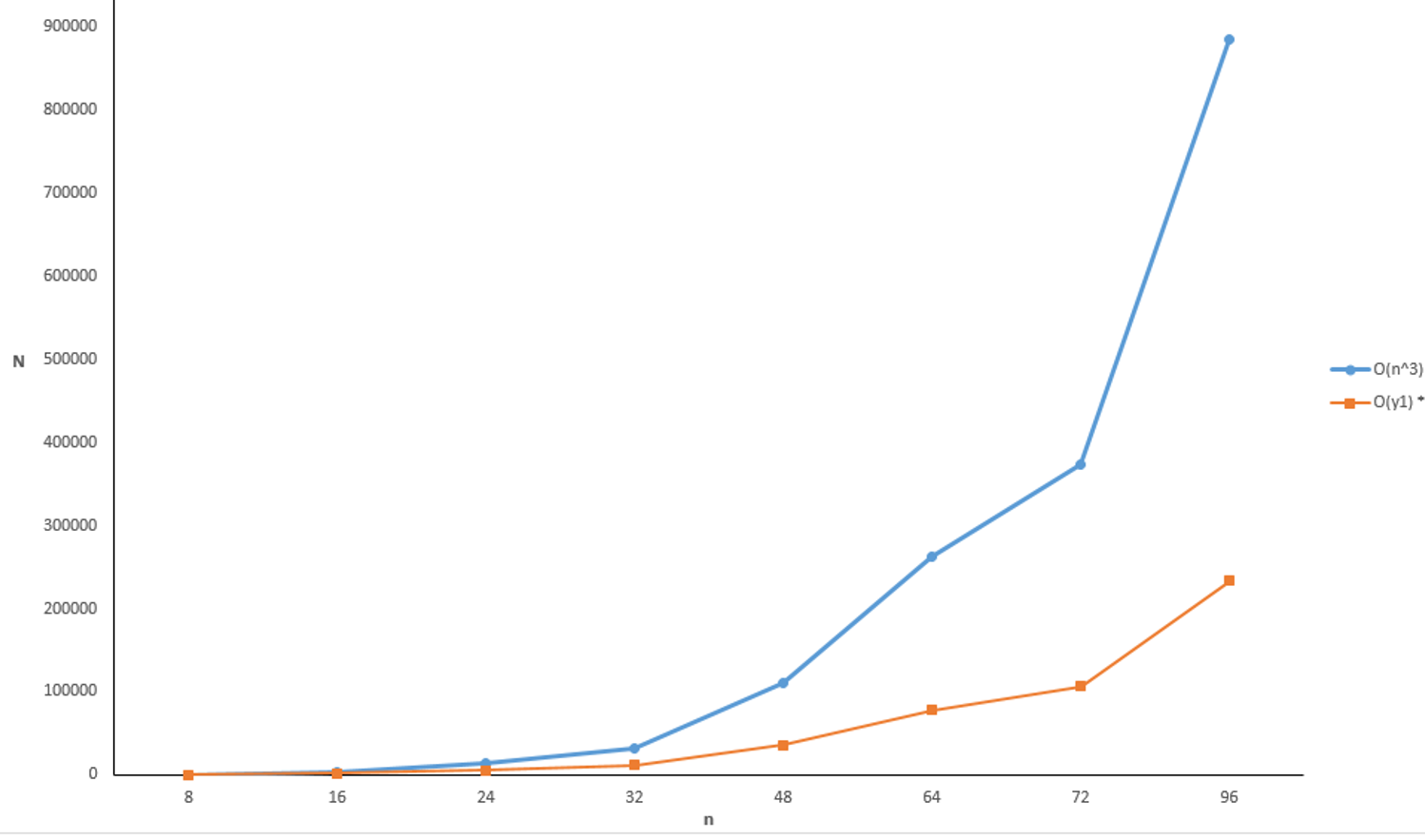
Microsoft Excel Changing The Interval Values On Line Chart X Axis Super User