When it comes to analyzing data over time, a time-based chart in Excel is an essential tool. It allows you to visualize trends, patterns, and fluctuations in your data, making it easier to identify areas of improvement and track progress. With the ability to create a variety of chart types, including line charts, area charts, and scatter plots, you can tailor your chart to suit your specific needs and goals.
Time-based charts are particularly useful for businesses and organizations that need to monitor performance metrics, such as sales, website traffic, or customer engagement, over time. By using a time-based chart, you can quickly and easily identify seasonal trends, anomalies, and correlations, and make informed decisions to drive growth and improvement. Whether you’re a seasoned data analyst or just starting out, creating a time-based chart in Excel is a skill that can take your data analysis to the next level.
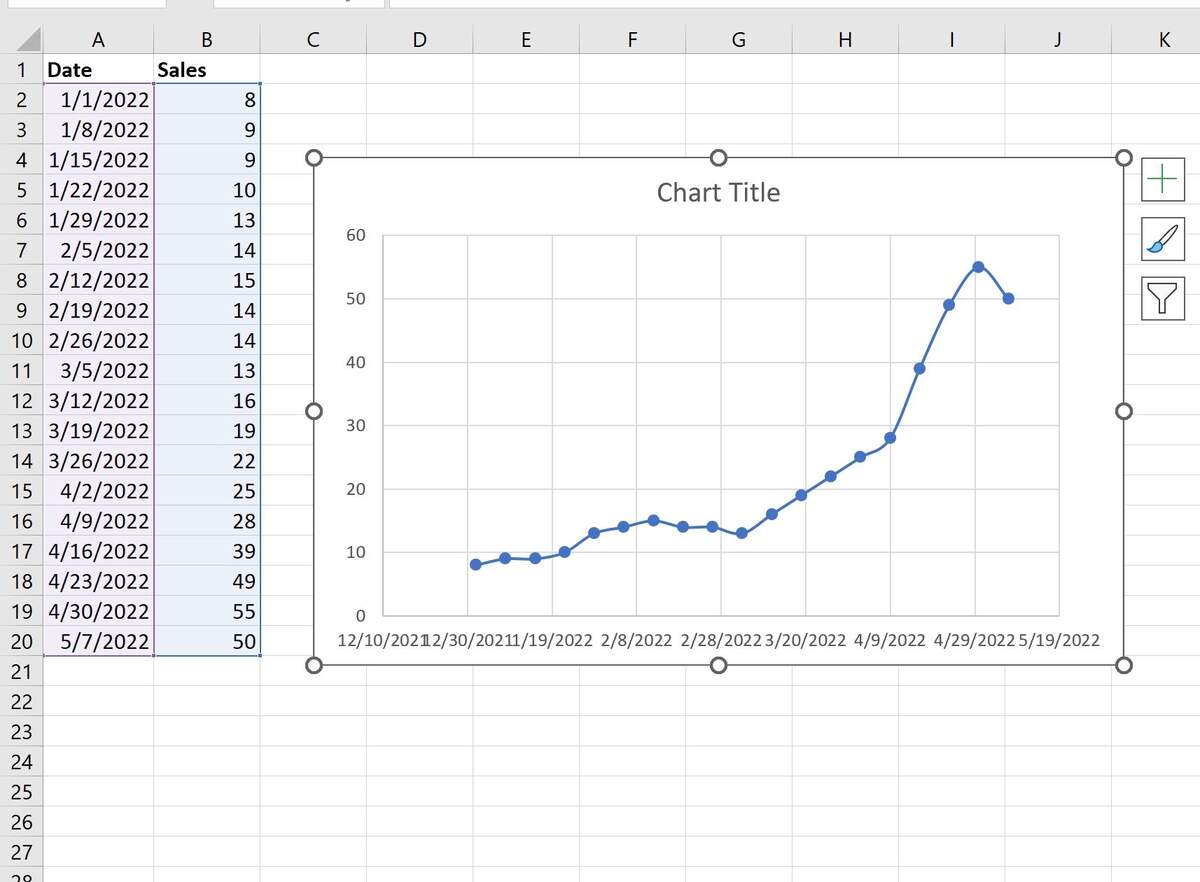
How To Plot A Time Series In Excel With Example
What is a Time-Based Chart in Excel?
A time-based chart in Excel is a type of chart that displays data over a continuous period of time, such as hours, days, weeks, or months. It is commonly used to show trends, patterns, and fluctuations in data over time, and can be used to analyze a wide range of data types, including financial, scientific, and social data. To create a time-based chart in Excel, you will need to have a dataset that includes a date or time column, as well as one or more columns of data that you want to analyze.
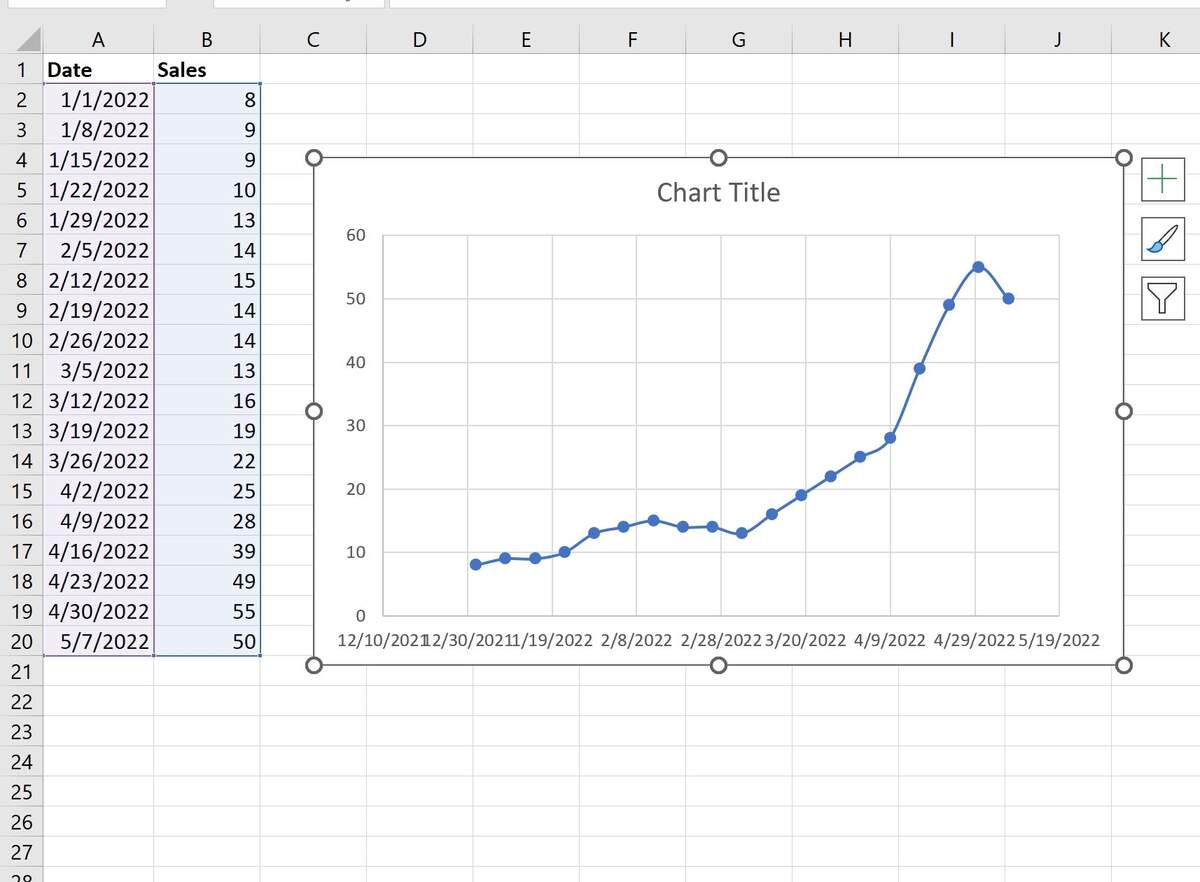
How To Plot A Time Series In Excel With Example
Creating a Time-Based Chart in Excel
Creating a time-based chart in Excel is a straightforward process that can be completed in just a few steps. First, select the data range that you want to chart, including the date or time column and the data columns. Then, go to the ‘Insert’ tab in the ribbon and click on the ‘Chart’ button. From the chart options, select the type of chart that you want to create, such as a line chart or area chart, and click ‘OK’. Excel will then create the chart based on your data, and you can customize it as needed to suit your needs.
Customizing Your Time-Based Chart
Once you have created your time-based chart, you can customize it to suit your needs and goals. You can add titles, labels, and legends to the chart, as well as adjust the colors, fonts, and layout. You can also add additional data series to the chart, such as moving averages or trend lines, to provide more context and insight. By customizing your time-based chart, you can make it more engaging, informative, and effective, and communicate your findings more clearly to others.
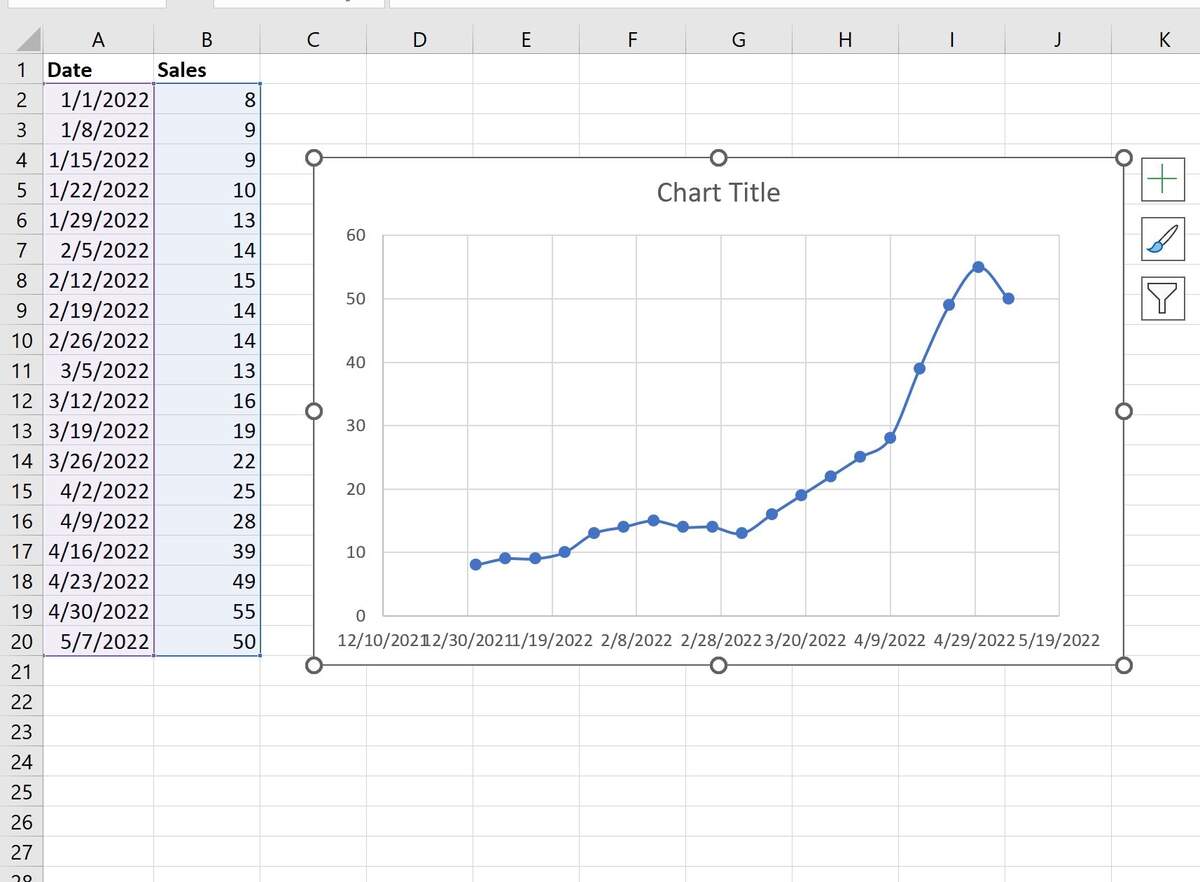
How To Plot A Time Series In Excel With Example
By mastering the art of creating and customizing time-based charts in Excel, you can unlock new insights and perspectives on your data, and take your data analysis to the next level. Whether you’re analyzing sales data, website traffic, or customer engagement, a time-based chart can help you identify trends, patterns, and fluctuations, and make informed decisions to drive growth and improvement. With practice and experience, you can become proficient in creating and using time-based charts in Excel, and achieve your goals more effectively.
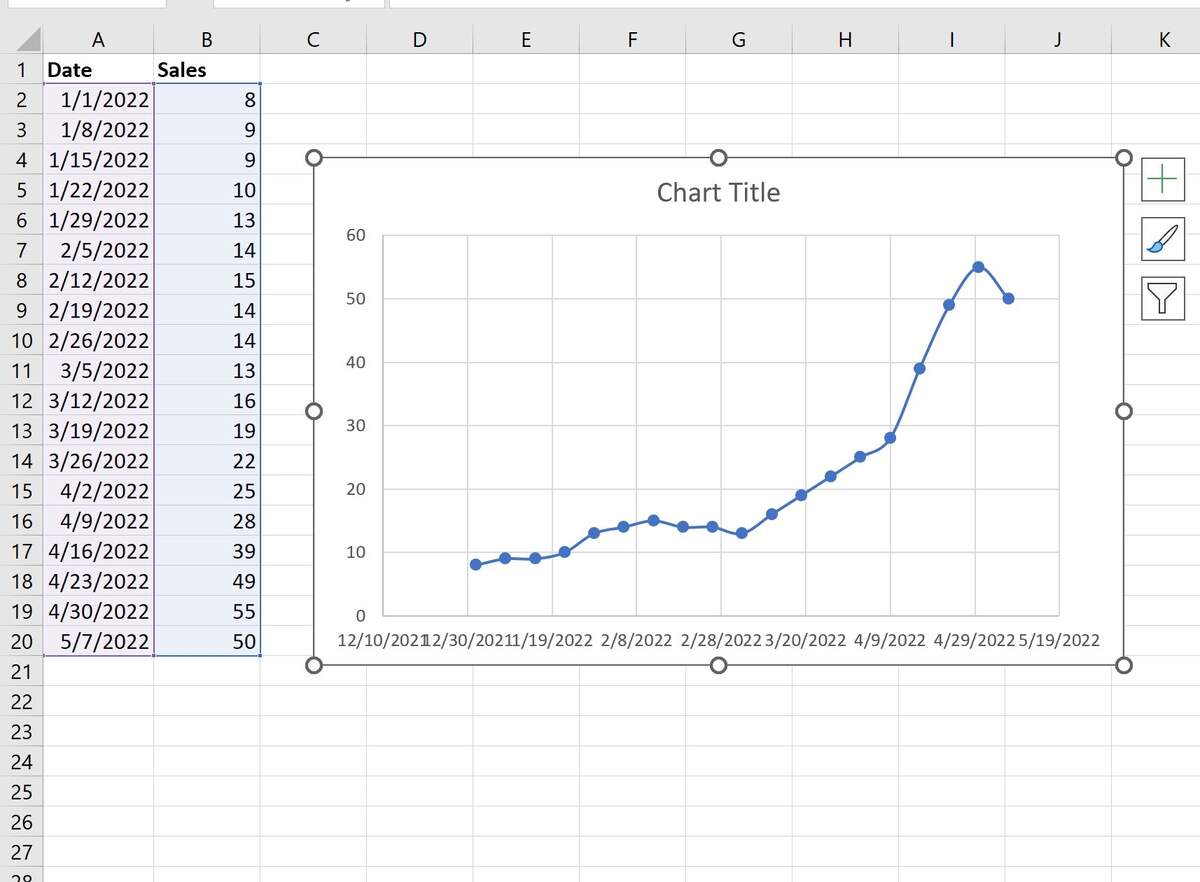
How To Plot A Time Series In Excel With Example
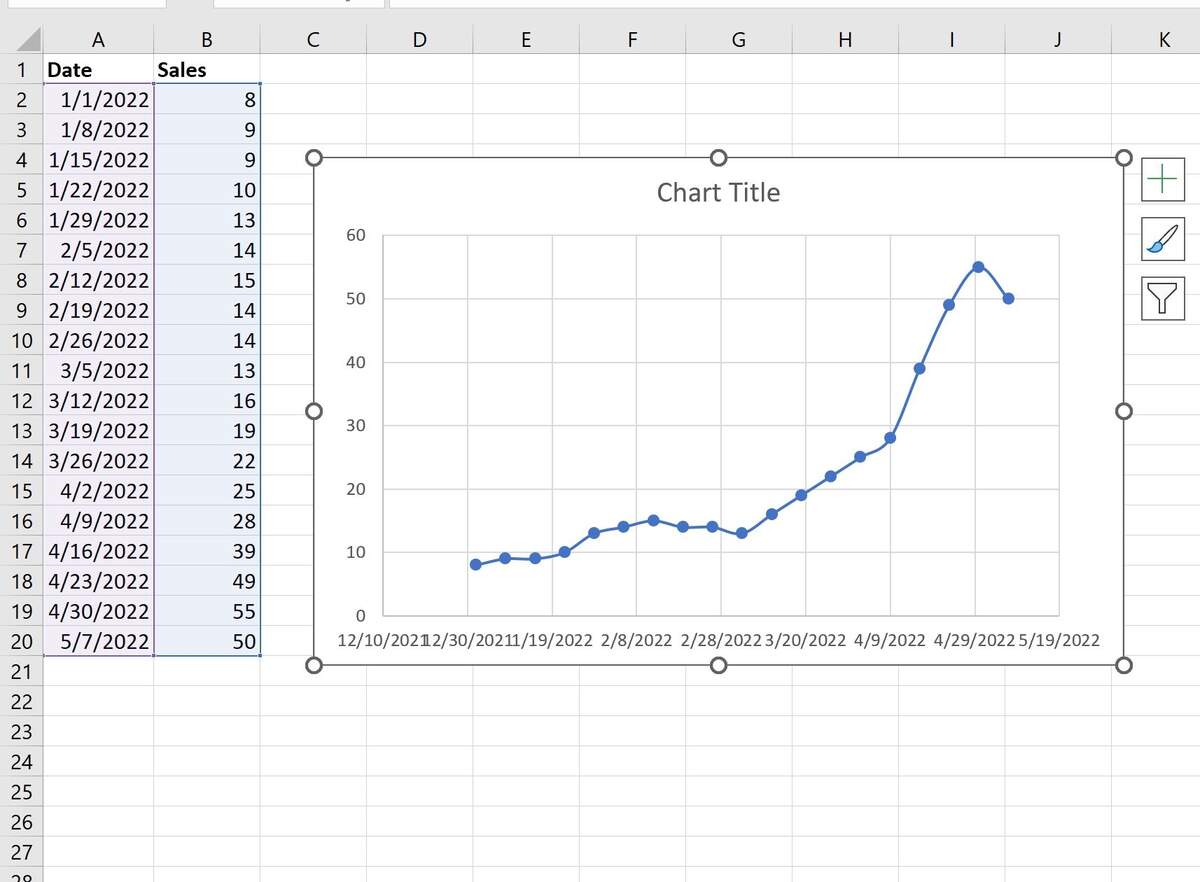
How To Plot A Time Series In Excel With Example